-
Senior Member
registered user
OldGeezer,
I think you hit the nail, right on the head. Knoppix, and Linux for that matter, is deffinately not Windows. If I was going to compare Linux to anything that is, or was, on the market, as far as an OS is concerned, I would liken Linux to WinNT. Because WinNT is more "user" based, and many know of it as being used for servers.
Linux is noting like Windows, even though they have made the Graphical User Interface, GUI, closely related, and visually comparable to Windows. You have permissions, user profiles, and most of the "power" of Linux is stuck in the CLI, or Command Line Interface. Even though Linux is "rock solid" as far as stability, and for security, you can't beat it, it (Linux) has a very difficult "learning curve". Linux, coming from its "father" UNIX, and Linux being its "son", they have a lot in common -=- cryptic commands. Cryptic if you come from the "world" of Windows.
Some commands of UNIX are ls, for listing files and folders, cat, for concatonating or viewing files, and cp, for coping files and folders. Compare these commands to the DOS/Windows equivalents, and you get: dir, type, and copy, at least cd is still the same in both worlds.
So, to see if we can get you going here, this is what I would do...
Process #1
(a) Get to a CLI screen - Click on the icon at the bottom of the screen that looks like a monitor with a shell in front of it.
(b) Get into, and edit your sources.list file - type: kwrite /etc/apt/sources.list
Process #2
(a) Get into, and edit your sources.list file (using the GUI) - Click on the little house icon at the bottom of the screen. This will open "konqurer" [sp], Click on the "up arrow" icon till you are at the root, or "/", Click on "etc" folder, Click on "apt" folder, and then Click on the "sources.list" file to open it in kwrite
Both processes are the same from here on
(c) move your cursor down the listing, and replace every instance you find of...
Code:
...ftp2.de.debian.org...
with the following...
Code:
...ftp.de.debian.org...
NOTE: you are only removing the "2" from the above entries...
(d) Click on the icon that looks like a floppy disk, or you can click on File, and select Save, from the menu.
(e) Click on the "X" in the upper right of the screen, or you can click on File, and then select Exit, from the menu.
(f) Get the updated package listings - from a CLI (see "Process #1" above for how to get into this) - type: apt-get update
(g) Get a "simulation", as BaldYeti suggested in his post - again in a CLI - type: apt-get -u -s install [yourpackagename
(h) If it looks good, go for it "for real" - remove the "-s" from the command you used in step "G" above.
One thing you will learn, using the "apt-get" packager, is that you always do a "apt-get update" before you do anything with apt-get. Reasoning? Simple, the apt-get update updates your database files on your system of what is currently available, and all of there dependancies. You always want current data before you do any installing, or searching, its that whole "bleeding edge" kind of thing. Many of the "packages" that can be gotten, can be going through many "version" changes, and thus, doing a apt-get update, ensures that any changes in versions, are reflected in any install or searching that apt-get will be doing.
Hopefully, this helps a little,
Ms. Cuddles
Similar Threads
-
By BeckBristow in forum General Support
Replies: 6
Last Post: 10-30-2004, 01:27 AM
-
By archvile in forum General Support
Replies: 8
Last Post: 02-28-2004, 03:54 PM
-
By three eyes open in forum Hdd Install / Debian / Apt
Replies: 2
Last Post: 08-03-2003, 05:37 AM
-
By VeeDubb in forum General Support
Replies: 1
Last Post: 07-29-2003, 03:02 AM
-
By Lawgick in forum General Support
Replies: 2
Last Post: 07-18-2003, 07:45 AM
 Posting Permissions
- You may not post new threads
- You may not post replies
- You may not post attachments
- You may not edit your posts
-
Forum Rules

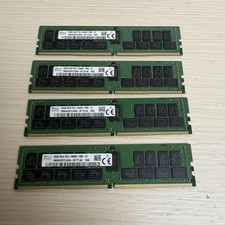
128GB (4x32GB) SK hynix DDR4 PC4-2666V RDIMM ECC Server Ram HMA84GR7CJR4N-VK
$799.00
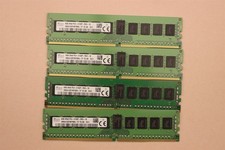
lOT OF 4 SKhynix 8GB (4 x 8GB =32GB) HMA41GR7MFR8N-TF 2R8 PC4-2133P DDR4 MEMORY
$89.00

TF/SD Card Adapter Camera Reader Android Type-c For iPhone17 Pro Max Plusm lot
$573.98
Microsoft Office 2021 Pro Plus USB for 1PC Windows 10 & 11
$62.50
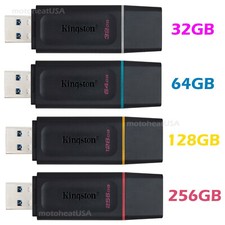
Kingston 32GB 64GB 128GB 256GB USB 3.0 Flash Drive Thumb Memory Stick Pen lot
$285.90

USB 3.0 Flash Drive 32GB 64GB 128GB Memory Stick Thumb Stick Lot Pack
$826.09
SK Hybix 16GBx16 (256GB kit) 2Rx8 PC4-2933Y RDIMM RAM
$1200.00
USB 3.0 Micro SD SDHC TF Card Reader Memory Adapter for PC Laptop Camera lot
$3.75
Dell Precision 3541 Laptop i5-9300H 2.4GHz 256GB SSD 16GB RAM Win 11 Pro
$189.99
SK Hynix 8GB 1RX4 PC4-2133P-RC0-10 Registered Server RAM HMA41GR7MFR4N-TF TD AB
$34.99



 Reply With Quote