-
Senior Member
registered user

Originally Posted by
Chris Lee
Originally Posted by
Cuddles
Shortcuts, or links, is the answer, and then placing them in the right location for the user. I am assuming that the applications are for a user, and not the system, if the system ( OS ) needs to run them - that is a different story... But, when a user logs in, specific settings are loaded for that user, like the way they like the desktop, clock, and even already running programs they had when they logged out... To get this user to activate a program when they login, you will want to create a "shortcut" in the home folder, under the folder named .kde/Autostart - open up a Konqueror window, ( the little house icon on the taskbar ), make sure you have under "View" Show Hidden Files, click on .kde folder, then click on Autostart, in this folder, right-click on the right pane, and select Create new, and then select Link to application... -=- this should allow you to enter, or browse for the application you want to create the autostart program for... ( Note: this assumption, and above example, assumes that you want to "autostart" a program for the user you are logged into at this time. )
I tried doing the shortcut, but I do not know what to input to the fields.
"Command, Panel Embedding, Run in Terminal"
The program I want to start right after login is aMSN messenger. I execute it by gonig into "Run command" > aMSN or by konsole and typing aMSN. I am not sure what to do.
Chris,
you got the right idea, you are just going to need to do a little research on where the program is at...
Chances are, if you can run the program from a Run Command [prompt, you might just be able to create the "link to application" without having to enter the complete path for it.
First, try to create a "link to application" on your desktop, in the command box you have got the execute tab, just enter what you enter in the "Run Command" - if it works, simply cut the desktop shortcut and paste it to the /home/"user"/.kde/Autostart/ location in a Konqueror window...
If the above doesn't start your program, just by using the program name, you will want to search for the program on your hard drive install... Once you find the complete path and program name, simply enter that in the "execute tab -> command" box for the "link to application"
I hope this helps,
Ms. Cuddles
Similar Threads
-
By sladetf in forum Hardware & Booting
Replies: 0
Last Post: 02-24-2005, 09:05 PM
-
By enraged in forum General Support
Replies: 3
Last Post: 07-06-2004, 05:27 AM
-
By icarus in forum Hdd Install / Debian / Apt
Replies: 1
Last Post: 10-07-2003, 01:46 PM
-
By tyiooo in forum General Support
Replies: 10
Last Post: 06-12-2003, 05:25 AM
-
By eliashan in forum General Support
Replies: 0
Last Post: 04-14-2003, 08:52 AM
 Posting Permissions
- You may not post new threads
- You may not post replies
- You may not post attachments
- You may not edit your posts
-
Forum Rules

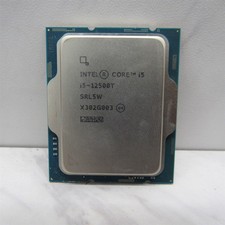
Intel Core i5-12500T SRL5W 2GHz 18MB 6 Core Socket LGA1700 Desktop CPU Processor
$114.99
Intel Core i7-8700 3.2 GHz 8 GT/s LGA 1151 Desktop CPU Processor SR3QS
$67.99

INTEL CORE I9-10940X X-SERIES PROCESSOR | 3.30GHZ | SRGSH
$179.99
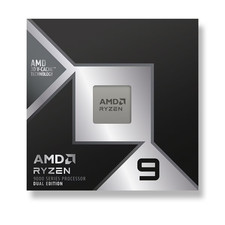
LAST BATCH *Brand New-Sealed* AMD Ryzen 9 9950X3D2 Dual Ed. 4.3GHz 16Core AM5
$768.00
Intel SR3XE Core i5-8500 3.0GHz 9M Socket 1151 6-Core CPU Processor *Tested*
$32.99
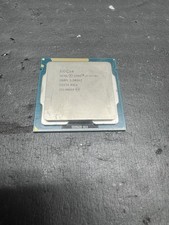
Intel Core i7-3770K 3.5 GHz Processor
$39.00
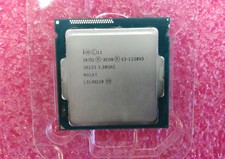
Intel Xeon E3-1230 v3 SR153 3.3GHz Quad Core LGA 1150 CPU Processor
$14.49
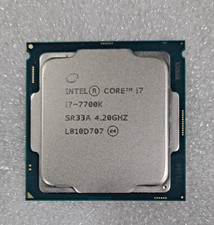
Intel Core i7-7700K SR33A 4.20GHz 4-Core LGA1151 CPU Processor
$62.95

Evergreen 586 - Processor upgrade 486 to 586
$149.99
Intel Core i5-4590T 2 GHz 5 GT/s LGA 1150 Desktop CPU Processor SR1S6
$10.99



 Reply With Quote