-
Junior Member
registered user
Making the hard drive writeable...
I read with particular interest Roberto's reply [December 31, 2002] to a post by M@rijn in the Knoppix HDD Install forum. I've been playing around with Knoppix for a couple of weeks and thought it would be very interesting to set up a machine on which the operating system is on the CD but with permissions to write to the hard drive. For one thing, that would make for an incredibly easy upgrade when a newer version of Knoppix becomes available. My hard drive currently consists of a single Linux-formatted partition.
I followed Roberto's instructions, particularly step #6, to make the hard drive writeable and was ultimately successful but ran into some differences. For example, when I right-clicked on the desktop icon for hda1, the menu that displayed did not contain an option to "Mount as Read-Write," as he had mentioned. I will list here what I encountered and welcome anyone's comments. To make my hard drive writeable, I performed the following steps.
1. Right-click on icon of Hard Disk Partition [hda1].
2. In the drop-down menu that displays, left-click on Properties. A window titled "General Permissions, Device" displays, containing three tabs.
3. Left-click on the Device tab. Uncheck the Read-Only box.
4. Left-click on OK.
5. Right-click again on icon of Hard Disk Partition [hda1].
6. In the drop-down menu that displays, left-click on Unmount.
7. Right-click again on icon of Hard Disk Partition [hda1].
8. In the drop-down menu that displays, left click on Mount. Because of the prior steps, hda1 is now mounted [remounted] as Read-Write.
I also tried another method, issuing the following command from a console command line:
sudo mount -o remount,rw /dev/hda1
but was met with the following message... mount: "you must specify file system type." I was uncertain how/where to respond to that, so I didn't explore that method any further.
Regards,
Howard
Similar Threads
-
By Ezor in forum General Support
Replies: 3
Last Post: 12-14-2004, 01:59 AM
-
By Bodhi in forum General Support
Replies: 3
Last Post: 12-11-2004, 02:19 AM
-
By jay_kpx in forum General Support
Replies: 5
Last Post: 11-16-2004, 08:34 AM
-
By kidsatacrux in forum MS Windows & New to Linux
Replies: 19
Last Post: 08-03-2004, 07:41 AM
-
By Gregwithoneg in forum General Support
Replies: 6
Last Post: 05-22-2003, 01:41 PM
 Posting Permissions
- You may not post new threads
- You may not post replies
- You may not post attachments
- You may not edit your posts
-
Forum Rules

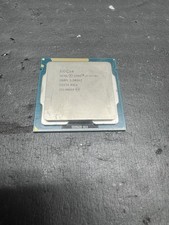
Intel Core i7-3770K 3.5 GHz Processor
$39.00

Intel Core i9-9900K SRG19 3.60GHz 16MB 8-Core LGA1151 B Grade CPU Processor
$175.00
INTEL CORE I7-870 SLBJG 2.93GHZ LGA1156 4 CORE CPU PROCESSOR
$23.00
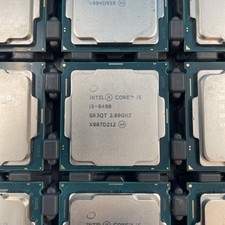
(LOT OF 20) Intel Core i5-8400 CPU 2.80GHz Desktop Processor (SR3QT)
$700.00
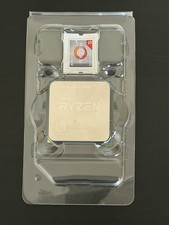
AMD Ryzen 5 5500 Processor ( read Description)
$59.00
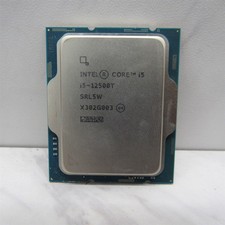
Intel Core i5-12500T SRL5W 2GHz 18MB 6 Core Socket LGA1700 Desktop CPU Processor
$114.99
Intel Core i7-9700 Octa-Core 3 GHz Desktop Processor LGA 1151
$79.99
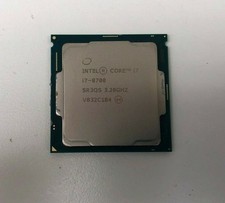
Intel i7-8700 Coffee Lake 3.2GHz 6-Core Max Turbo 4.6GHz Processor
$67.99
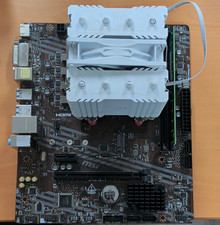
motherboard CPU combo am4
$70.00

INTEL CORE I9-10940X X-SERIES PROCESSOR | 3.30GHZ | SRGSH
$179.99



 Reply With Quote