
I want to make partition for a persistent home, and I'm not sure how to do it. The hd is about 18G total, with 10G taken. And I need to make a 30-50M partition for the PH. Ho do I do this with Qtparted?


I want to make partition for a persistent home, and I'm not sure how to do it. The hd is about 18G total, with 10G taken. And I need to make a 30-50M partition for the PH. Ho do I do this with Qtparted?
Basically, you open the program and select the device. There will be both a numerical and a graphical display of the device, with existing partitions marked. As you click one of the partitions a rectangle appears to represent its size graphically, along with the numeric size. You can either use the up/down arrows to change the numeric size of the existing partition, or drag the boundaries with your mouse to change the size. The space you free up will be shown as free space. From this free space, you can create one or more partitions, in whichever format you select. Once you have it as you want, there is a button which commits your selection. IIRC, you can also write the file system to each partition within the program. It's kind of like one of those sliding tile puzzles, in that you can't change the boundaries between partitions without creating free space first - you have to either shrink or delete an adjacent partition to increase the other. But you'll figure it out. It's very intuitive.Originally Posted by Kowood
Oh, and you may need to be root. Either enter "sudo qtparted" from the console, or "sudo passwd" to create a root password, and open it with KDE. Either way, it takes you to the same interface.
BE SURE to defrag and back up any Windows parttions, particularly NTFS partitions, before doing this. I successfully increased the size of an NTFS partition on a laptop when I ran out of room on it, so it can be done, but don't be careless.
jd
One more thing - What filesystem should I use for a PH? I tried ext3, but hda2 didn't show up under the list of partitions to select for the PH.
Yes, I've noticed that. Annoying, isn't it? As far as I can tell, you have two choices: Either go with ext2 and dedicate your entire partition to the PH (which is what I did), or partition as you please and create your PH as a file. The main reason I chose the former is that I had already partitioned a second HD from a Mandrake dual boot, and it seemed easiest just to use the same partitions. A lot of people use PH files, though. Since you are kind of squeezed for space, and since it seems unlikely that you will dual boot without adding space, I think I'd be inclined to partition in FAT32, and define the PH as a file within. Give it a try and let us know if you like it.
BTW, you don't have to use Qtparted to change the file system type - you can if you want, or you can open a console, and as root, issue the mkfs command. Look here or in the man pages for syntax appropriate to your situation.
jd
Still having problems. Here's what I did: Opened Qtparted from KDE, then made 100M of free space in hda, then made 40M partition from the free space, then quit from Qtparted, then opened the PH creator thingy, and when it got to the spot where you choose the partition, there was nothing more than hda1 and sda1 (not sure about the 2nd one, but it was the USB/Flash drive thingy.) Do I have to save something in Qtparted or do something besides just create the partition?
If you made 100 free, then used 40 for a partition, where are the other 60?
You have to account for the space and then commit the changes.
Also, you need to format the partition you created. There's a menu item for that in Qtparted.
jd
I did format it as ext2. I just left the other 60 as free space.
sda1 is your USB thumbdrive, BTW, as you suspected.
If you want to leave 60 MB of free space, I suppose you can, but that just means that it can't be used by anything.
If you created an ext2 partition, and then formatted it as ext2 afterwards, then I don't know what more you can do with Qtparted. Must be something else.
Try rebooting. If you just created it, then your fstab is not going to recognize that it exists unless you modify the fstab or reboot and let it be autodetected. Since you are dealing with live CD, you really can't edit. I'm sure one of these smart folks could tell you what cryptic combination of of letters, numbers and symbols to put in at the console, but if it were me, I'd just reboot. When it comes up again, it should appear as a hd icon on your desktop. Be sure to make it writable before you create the PH
jd
Wait, I just created it, I don't think I formatted it. How do I format it?
If you created it with qtparted and select the type, atparted auto formats.
Also J.D. I just use kwrite, just type kwrite /etc/fstab in a root window. From there, type the drive, filesystem, and where to mount it.
The fstab is in ramdisk. (other wise how could it be created to fit your computer?)
 Posting Permissions

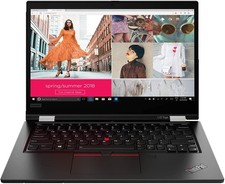
Lenovo ThinkPad L13 Yoga Touch Laptop 13.3” Core i5 8GB RAM 256GB SSD Win 11 Pro
$239.99
Lenovo ThinkPad L15 Gen 3 15.6" 16GB, Thunder Black
$241.50
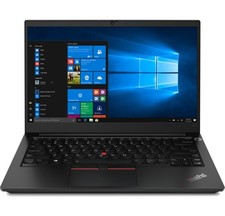
Lenovo ThinkPad E14 Gen 2 Laptop 14” HD Ryzen 5 16GB RAM 512GB SSD Win 11 Pro
$334.99
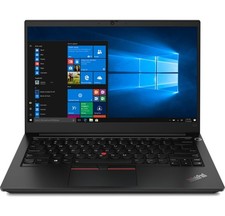
Lenovo ThinkPad E14 Gen 3 Laptop 14” FHD AMD Ryzen 5 16GB RAM 512GB SSD Win 11
$374.99

Lenovo Legion 5 Gaming 15.1" WQXGA OLED 165Hz Core i9-14900HX 16GB 1TB RTX 5070
$1469.00
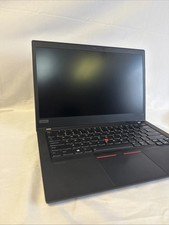
Lenovo ThinkPad T14 Gen 1 14" AMD Ryzen 5 16GB 256GB SSD
$219.99
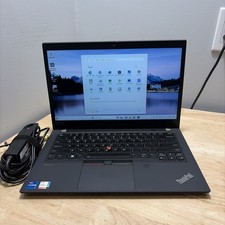
LENOVO THINKPAD T14 GEN 2i CORE I7-11165G7 2.8GHZ 16GB 256 SSD WCAM WI1 CORD
$250.00
Lenovo - IdeaPad Slim 3i 15.3" 2K Touchscreen Laptop - Intel Core 7 350 2026 ...
$679.99
Lenovo ThinkPad L15 Gen 3 15.6" 16GB, Thunder Black
$241.50
Lenovo ThinkPad T14s Laptop 14” Laptop Core i5 8GB RAM 256GB SSD Windows 11 Pro
$249.99

 Reply With Quote