-
Senior Member
registered user
Stas,
Here is the "play by play"...
Go to the ATI.COM web site,
Click on "Drivers & Software" tab...
Click on "Linux" in the left pane of window...
Clink on "Graphics Drivers" on the center pane of the window...
Click on "Radeon 9600 Series" on the right pane of window...
Click on "GO" just below the right pane window...
On the web page displayed, you need the "Check.sh" program to display your XFree86 version, or so it says, so click on the "Check.sh" link, it will bring up a dialog box, you want to save it to disk... Place the download file somewhere you will remember where it is... You will need to navigate to this location from a TEXT ( Konsole ) screen, after the download completes...
After the check.sh file is downloaded, open a Konsole screen, if you are not ROOT, do a su to be sure you are root...
Do a cd to get to the location of where you downloaded this "check.sh" file, you can do a ls as you navigate, be sure that check.sh is in the output of a ls listing...
The downloaded program, or script will have been downloaded as a "non-executable" file, it did when I just did it, so, you need to do a chmod +x check.sh to ensure you can run this script... verify that "x" is in the output of a ls -la on the check.sh - it should look something like this "-rwx--x--x" ( note the "x" 's in the output...
Now run the script, by doing this: ./check.sh ( note that a period is before the "/"
The script will output what version of XFree86 you are running, mine was 4.3.0.1, and then go back to your web browser, and select the version of your XFree86 from the listed downloadable drivers... ( in my case, my download would be the 4.3.0, yours could be different )
Follow the instructions from the ATI site, if they provide them, else, be sure to download them into a "known" location, like you did with the "check.sh" script, if it is a tarball, you will need to untar it, etc.. etc..
Similar Threads
-
By echodavis in forum MS Windows & New to Linux
Replies: 1
Last Post: 08-26-2005, 01:58 AM
-
By Matth in forum Hdd Install / Debian / Apt
Replies: 5
Last Post: 11-21-2004, 08:10 PM
-
By obsoleto in forum Hardware & Booting
Replies: 1
Last Post: 10-18-2004, 03:21 PM
-
By nomex in forum Hardware & Booting
Replies: 5
Last Post: 07-05-2003, 06:02 PM
-
By joekm in forum General Support
Replies: 1
Last Post: 06-04-2003, 01:55 PM
 Posting Permissions
- You may not post new threads
- You may not post replies
- You may not post attachments
- You may not edit your posts
-
Forum Rules

Samsung 2.5" 870 EVO SSD SATA III 250GB 500GB 1TB Internet Solid State Drive Lot
$100.00
Samsung 860 EVO 250GB SSD MZ-76E250 2.5" SATA III Solid State Drive -
$36.99
Western Digital Blue 3D NAND 500GB Internal 2.5" SSD - WDS500G2B0A
$49.99
Samsung 250GB SSD 850 EVO 2.5" Internal Solid State Drive MZ7LN250 MZ-75E250
$25.99

Netac 2TB 1TB 512GB 256GB Internal SSD 2.5inch SATAIII Solid State Drive lot
$549.00
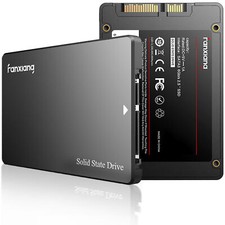
Fanxiang 256GB 512GB 1TB 2TB 4TB SSD Lot 2.5'' SATA Internal Solid State Drive
$42.99
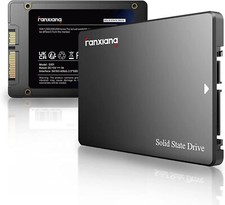
Fanxiang 1/2/5/10Pcs 2.5'' SATA SSD Lot 1TB 2TB 4TB 512GB 256GB TLC Internal SSD
$129.99
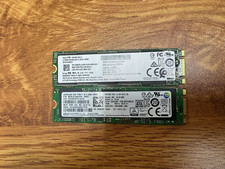
2 PACK 128 GB SSD M.2 2280 SATA Solid State Drive Major Brands, Samsung, LiteON
$28.00
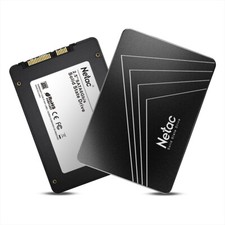
Netac 120GB 256GB 1TB 2TB Internal SSD 2.5'' SATAIII 6Gb/s Solid State Drive lot
$75.99
Intel Solid-State Drive DC S3500 Series 240GB Internal 2.5" (SSDSC2BB240G4P) SSD
$29.99



 Reply With Quote