-
Administrator
Site Admin-

Originally Posted by
OErjan
i have had that problem when helping friends download Knoppix, botn to XP and WIN2K.
as far as i know it is WINRAR and/or one other utility (canot remember name), that "kidnaps" th *.ISO files and tries to unzipthem, anoyinbg as &(/&().
The hijacking is an anoying feature of Windows, happens to a lot more than ISO files. But that's far different from saying a file of one type (in this case iso) is a different type (zip).
This hijacking in no way prevents you from burning an iso. At least as long as you understand what type of file that you really have.
As already stated, if you are burning from an iso, open Nero, and from the file menu select "Burn image ...". DO NOT just copy the ISO to the CD with the "CD ROM (ISO)" option that shows up on the splash menu when Nero starts. This works no matter what application the ISO extension is associated with (I have the ISO extension associated with an application called ISO Buster myself, so clearly it's not a problem). By the way, ISO Buster did not hijack this extension, I made the change myself. See below.
In Windows you can change the association yourself when some anti-social program hijacks an extension (this happens a lot with various graphic and video formats). Just find a file with the extension you want to change, hold the shift key down, and right click on the file. A menu should open that includes open with ... in addition to or instead of open. Select open with ... and a window should open that lets you select what program you want to open the file with. There is also a small check box for always using that application, check it to change the default.
I've seen a few graphic programs that continue to hijack some extensions each time they are run. The fix here is easy too. Stop running any such software.
Recap: Any of 3 approaches to do this: Open Nero and use the burn image option, Shift right-click on the iso file and select Nero from the list of applications, or Shift right-click on the iso file and select Nero from the list of applications and check the box so that you don't have to do this again. That concludes this lesson in using Windows.
Similar Threads
-
By Drake in forum MS Windows & New to Linux
Replies: 4
Last Post: 06-19-2005, 02:11 AM
-
By CaNaDa11278 in forum Klik
Replies: 0
Last Post: 06-10-2005, 12:40 AM
-
By jch02140 in forum General Support
Replies: 4
Last Post: 06-18-2004, 02:22 AM
-
By tup34 in forum The Lounge
Replies: 3
Last Post: 05-01-2004, 06:23 PM
-
By Dave_Bechtel in forum General Support
Replies: 0
Last Post: 06-04-2003, 11:54 AM
 Posting Permissions
- You may not post new threads
- You may not post replies
- You may not post attachments
- You may not edit your posts
-
Forum Rules

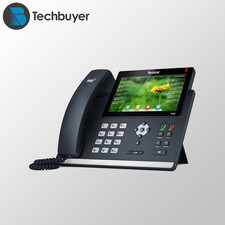
Yealink T48S VoIP/SIP Phone, 2 x Gigabit Ports PoE 7" Color SIP-T48S | TESTED
$34.95
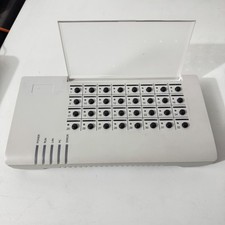
SIM Bank 32 SIM Card Slots Ethernet SIM Server for GoIP
$400.00
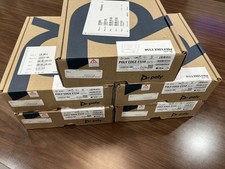
Lot Of 5 Poly Edge E550 82M91AA IP Desktop Phone PoE New In Box
$1500.00
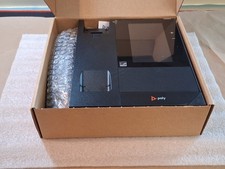
Poly CCX 400 Desktop Business Media Phone VoIP 2200-49700-019
$49.99
Yealink SIP-T33G IP Phone 4-LineSpeakerphone VoIP Desk Phone Black w/ Power Sply
$25.00
Grandstream HT701 1-Port FXS Analog Telephone Adapter ATA VoIP Gateway -Free S/H
$19.99
Grandstream WP810 Portable Cordless Wi-Fi IP Phone
$49.28
Grandstream VoIP Phone Adapter ATA 1-Line Black Ethernet (RJ-45) Micro USB
$27.07
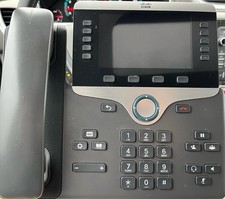
Cisco CP-8841 IP Phone Charcoal Handset And Stand Included
$27.99
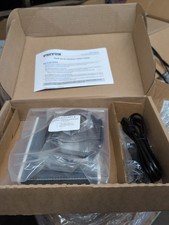
Patton SmartNode 4114 VoIP Media Gateway
$120.00



 Reply With Quote