

 Reply With Quote
That's commonly stated, and there's many posts in this forum on this partcular subject. Click on the link that says search at the top of the page, and search your problems away.


Boy this is a weird problem.
I can dial out in root mode clicking on the modem dialer.
But in user mode, when I try click on the Modem dialer in in the menu nothing happens.
If I try to create a link from that, I get a message saying KPP Not Found.
But, if I get into the File Manager Super User Mode, still in user mode, I can navigate to this folder and click on it and run the modem dialer:
/root/.kde/share/apps/kicker/kppdesktop
'Kppdesktop' is the modem dialer and has the modem dialer icon.
How do I get the normal modem dialer back in user mode?
sakiZ
That's commonly stated, and there's many posts in this forum on this partcular subject. Click on the link that says search at the top of the page, and search your problems away.
Well, thanks for the tip. I'll search around. The problem seemed pretty bizarre.
Glad to know I'm not alone, I guess.....
I did "solve" the problem short term. I just set up my root mode the same way as I have my user mode set up. New mail account and all.
I must say, the amount of permission denied messages in user mode is quite annoying.
Access denied. Need password. etc etc. I realize Linux likes to be more secure, but this is a little much.
I'm the only user and I'm only on line briefly. Ah well. Better then Windoze, eh?
sakiZ
You don't acually have to be logged in to a desktop as root, you can simply use this command as a normal user:Originally Posted by sakiZ
This will ask for your root password, then run kppp as root, assuming you gave the correct password.Code:gksu kppp
Thanks,
Saki
OK, this could be a real plus if we could do something like write a short little script (batch file)
that automates this procedure.
Slap an dialer icon on it and put it on your desktop???
That would give users the best of both worlds, user convenience and an ultra secure desktop!
Is that too Windows like?
Hmm?
sakiZ
It depends: If you are talking about automating the password, then yes, otherwise it sounds like a good idea.
Just to get you started, type the following lines in a terminal to get a script such as you described to appear on your desktop:Code:echo '#''!'/bin/bash > kppp echo 'gksu kppp' >> kppp chmod a+x kppp mv kppp ~/Desktop/
echo '#''!'/bin/bash > kppp
echo 'gksu kppp' >> kppp
chmod a+x kppp
mv kppp ~/Desktop/
After I created the script you sent me above, I then changed the icon for it to the KPPP icon and renamed it to
"Dial Jade" which is my ISP.
Very user friendly!!!
Thanks so much.
Have a happy New Year!!!!!
sakiZ
 Posting Permissions

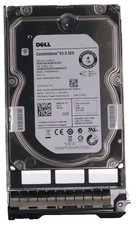
Dell 6P85J 4TB ST4000NM0063 7.2k 6Gb/s 3.5” SAS SED Hard Drive with Tray
$39.99
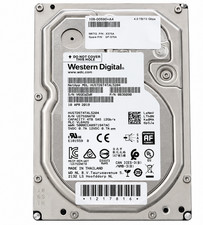
Western Digital HUS726T4TAL5204 4TB 7.2K SAS 12Gb/s 3.5" 512e HDD NetApp X375A
$64.00

DELL 2TB Enterprise HDD (7200RPM, 3.5", SATA III, 128MB Cache) HUS722T2TALA600
$49.95
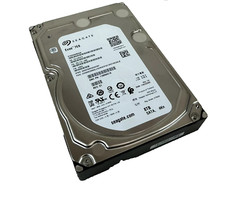
(ST8000NM0045) SEAGATE ENTERPRISE 8TB 7200RPM 4Kn SATA 6Gb/s 3.5" HARD DRIVE
$199.99
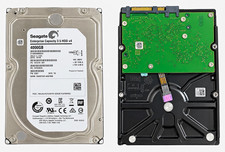
Seagate ST4000NM0034 Enterprise 4TB 7200RPM SAS 12Gb/s HDD v4
$39.00
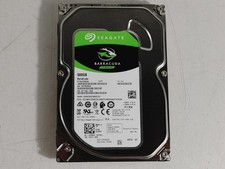
Seagate ST500DM009 BarraCuda 500 GB 3.5" SATA III Desktop Hard Drive
$14.99
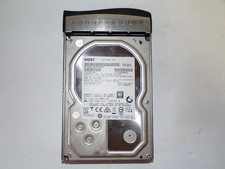
HGST HUS726060ALE610 0F23001 6TB HDD 3.5" SATA 6Gb/s 7.2K Hard Drive (V6315)
$69.95
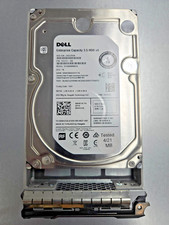
Dell ST6000NM0034 1HT27Z-150 NWCCG 6TB SAS 3.5 7.2K ENTERPRISE SERVER DRIVE
$68.99

Seagate ST8000NM0075 Enterprise Capacity 3.5 HDD 8TB SAS Hard Drive 8TB EXOS
$184.99
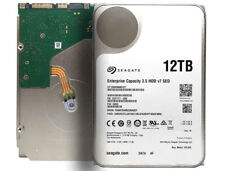
Seagate ST12000NM0127 12TB 256MB 7200RPM 3.5" SATA 6.0Gb/s Enterprise Hard Drive
$318.99