-
Senior Member
registered user
Re: Knoppix 3.8 (CeBit) Live CD - Help!

Originally Posted by
Becu
The problem I had with other Live CDs was that I couldn't write or save anything on my (hard) disk (since it is NTFS, as far as I know). This problem is supposed to be solved with Knoppix 3.8, right? But...
NTFS writting has not been solved with 3.8 but I will explain how you can accomplish your tasks.
First of all, when I tried to install a rpm file (a "part" of the program whose function is unknown to me...) it would't let me because I need a "root" password. I couldn't decompress the program files either. I have read in a thread I can set the root password by typing "sudo su" in any console. OK, I will try that.
Try this post for the root password http://www.knoppix.net/forum/viewtopic.php?t=11500
But still I have a question: in case I'm able to decompress and/or install the program...where would it be written and stored? I don't want it to overwrite any windows file! Does Linux create any directory of folder where it keeps and install programs permanently (which I can check even if i log out, from my windows system?)
Knoppix 3.8 uses a new feature called UnionFS which takes a portion of your PC's RAM and maps it on top of the running Knoppix CDR (& read-only) filesystem. This map allows you to write changes to the running filesystem, but the actual written files are stored in the mapped RAM space and not on the CDR or the hard drive. This is how you can install programs in Knoppix 3.8 without having to use a hard drive or a USB memory device.
I hope I'm not forced to partition my disk (yet) for running the program I need.
You should not have to repartition the HD. You should be able use root authority to convert the RPM file into a DEB file, install the DEB file, and then run the program.
To become root or to use root authority to perform a administrative task use sudo then the command you want to run. You will also use a program called alien to convert the RPM to a DEB:
Code:
sudo alien --to-deb your-program.rpm
It will take some time but will create a new file with the extension .DEB. You will now need to install it using the dpkg command.
Code:
sudo dpkg -i your-program.deb
Now that it has been installed you can run the program itself by either typing it's name or by running it via the GUI.
This method is not persistant, meaning that once you reboot ALL the changes (installed programs, created documents, etc) are gone & never to be recovered. If you intend to save your created documents you have the option of saving them to another PC via a LAN, emailing them to yourself, saving them to a USB memory stick, if you have a CDR drive you can burn a CDR. You can not save them to the HD because writing to a hard drive NTFS partition could destroy the NTFS partition.
I hope this helps.
James
Similar Threads
-
By Eppo in forum German Forum
Replies: 6
Last Post: 03-03-2008, 05:00 PM
-
Replies: 156
Last Post: 04-14-2005, 08:05 PM
-
By eco2geek in forum The Lounge
Replies: 13
Last Post: 03-29-2005, 03:14 PM
-
Replies: 35
Last Post: 10-03-2004, 01:39 AM
-
By Jack_ in forum General Support
Replies: 2
Last Post: 03-18-2004, 08:27 PM
 Posting Permissions
- You may not post new threads
- You may not post replies
- You may not post attachments
- You may not edit your posts
-
Forum Rules

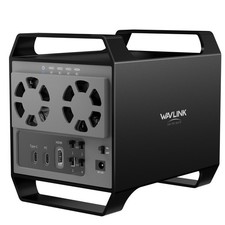
2-Bay/4-Bay Hard Drive Enclosure for 3.5"/2.5'' SATA HDD/SSD 10Gbps USB-C 3.2
$75.99

OWC Mercury Elite Pro 2 Bay RAID Enclosure with USB 3.2 for Dual 3.5 inch HDDs
$87.99
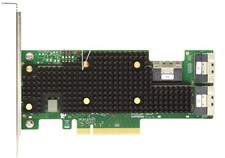
Broadcom 9600-24i RAID Controller PCIe Gen 4.1 Tri-Mode NEW 05-50111-01004
$649.99
Intel VROC Premium RAID Controller Card PCIe Add-On Module VROCPREMMOD
$265.00

Acasis USB 3.2 2 Bay HDD RAID Enclosure for 2.5/3.5" SATA Drives External Array
$55.00
MegaRAID 9580-8i8e 16-port 12G SAS/SATA/NVMe 8GB PCIe RAID - 05-50076-00
$1619.19
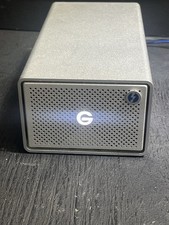
G-Technology G-RAID 24TB Dual-Drive External HDD TB3 USB 3.1 7200RPM Silver
$299.99
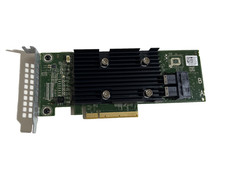
Dell PowerEdge HBA330 LP PCI-E 12GBs RAID SAS Controller Adapter J7TNV
$18.95
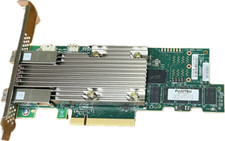
Broadcom MegaRAID 9480-8e Fujitsu PRAID EP540e SAS RAID Card (Replac 9380-8e) 8i
$228.00
EMC KTN-SL3 15-Bay Disk Array Enclosure w/2x 303-108-000E Cards, Dual PSU,No HDD
$239.99



 Reply With Quote