
ok, i need info on how to make this work... me and me friend have been trying for the last past hour to try and make this work, but he can't find me and i cant find him... but i can view meself... all we want to do on it is play around...


ok, i need info on how to make this work... me and me friend have been trying for the last past hour to try and make this work, but he can't find me and i cant find him... but i can view meself... all we want to do on it is play around...
On Linux/Unix, run:
vncserver -geometry 1024x768 -depth 24
If you haven't already run it, then it will ask you to secure it with a password.
Next it will run and give you display information:That :# is very important to get vnc connected.Code:New 'my-test-machine:1 (james)' desktop is my-test-machine:1 Starting applications specified in /home/james/.vnc/xstartup Log file is /home/james/.vnc/my-test-machine:1.log
On windows I use RealVNC 4 from www.realvnc.com. On linux I krdc which is the built in KDE remote desktop connection which knows the vnc protocol, command: krdc. Or I use the xvncviewer xvnc4viewer commands. When connecting to a linux/unix vnc desktop you MUST include the display info, the :#, so that it knows to connect to that desktop. So to connect to my-test-machine I would enter the machine's hostname/IP immediatley follows by the display number: 192.168.100.83:1.
This display number is necessary to connected to a linux/unix machine because you can have multiple vnc sessions for multiple users from 1 machine. If you trying to connect to a vnc running on a windows machine, then the display number is not necessary as VNC for windows can not provide multiple desktops for multiple users from 1 machine.
If you successfully get connected to a linux/unix box and you do not see your usual KDE/GNOME/IceWM/WindowMaker/etc desktop, then it is because vnc did not start your normal X session but rather ran a boring ugly twm x session. To change this you must edit the /home/username/.vnc/xstartup file and tell it to start either KDE/GNOME/IceWM/WindowMaker/etc.
To end a vnc session on a linux/unix machine, use the command line:
vncserver -kill :#
where the :# is the display number of the session you want to kill. You do not need to run it from the physical console or a ssh session. You can run it right from a running vnc session so that it will self terminate.
I hope this helps.
James
i belive vnc for debian is java based. so you have to view it with your web browser.
will show the listerning port its using.Code:netstat -tupln
The web interface to VNC is available on all platforms (there is nothing different about debian). However, VNC works better and faster using a proper VNC client. I use the standard realvnc vncserver + vncviewer and they work well.Originally Posted by pureone
i prefer ultr@NVC
but i dont know how to complile and run stuff on linux
andbody can help me understand how
i am trying to install 3 things and dont know how
WASTE (encrypted decentralized p2p)
Nicotine (soulseek linux clone)
UltraVNC (remote control)
also once i learn how to install linux software how do i keep these on the boot cd setup?
rebuild? and how
Make your own post about this. Please do not put your support requests at the end of somone else's. If you make your own post I will provide support as I already have it all typed out.
thank you all people... i am testing it today... so, if i dont ask anymore questions, you know it worked...
THANK YOU!
I want get Desktop display:0 in my Windows.
How to set this...
When I type >vncserver [defaults] it showed me X Server Display:1
That NOT display the Real desktop but virtual one. I dont want this...
Pleasse HELP.. how I can view REAL desktop linux in Windows [display:0 or 5900]
Please write the instruction here... Thanks
okie
I have been able to share the :0 display on a monitor and have been able to remote control it at the same time from another machine.
It is very simple
Just download x11vnc from http://www.karlrunge.com/x11vnc/
Follow the instructions on the website and you will be up and running in 5-10 mins.
 Posting Permissions

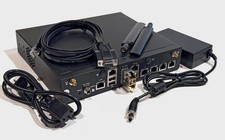
OPNsense Firewall VPN QAT 8-Core Atom C3758 2.20GHz 8GB DDR4 64GB SSD 8x NIC
$115.00

Microsoft SQL Server 2019 Enterprise 40 Core Unlimited CAL Retail License FPP
$299.00
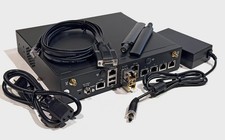
OPNsense pfSense 8-Core Atom C3758 2.2GHz 8GB DDR4 64GB SSD 8x NIC QAT AES VPN
$115.00
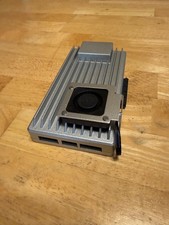
ZimaBoard 2 1664 Home Server 16GB
$350.00

Ubuntu Server 26.04.1 LTS Bootable USB Flash Drive – Latest September 2026
$12.99

All New Ubuntu 26.04 LTS Linux Bootable USB Flash Drive
$15.95
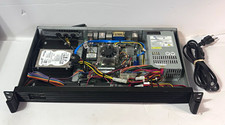
1U Rackmount PC Intel Core i5-2520M 8GB RAM 500GB HDD Ubuntu Linux Server
$109.99
OPNsense pfSense 8-Core Atom C3758 2.2GHz 8GB DDR4 512GB SSD 8x NIC QAT AES VPN
$128.00

Sun Enterprise e450 400mhz cpu(x4), 4gb ram, 9gb HD w/spud most complete on ebay
$500.00

SQL Server 2022 Enterprise 96 Core License & DVD Unlimited CALs with CoA
$284.99

 Reply With Quote