-
Senior Member
registered user
On Linux/Unix, run:
vncserver -geometry 1024x768 -depth 24
If you haven't already run it, then it will ask you to secure it with a password.
Next it will run and give you display information:
Code:
New 'my-test-machine:1 (james)' desktop is my-test-machine:1

Starting applications specified in /home/james/.vnc/xstartup
Log file is /home/james/.vnc/my-test-machine:1.log
That :# is very important to get vnc connected.
On windows I use RealVNC 4 from www.realvnc.com. On linux I krdc which is the built in KDE remote desktop connection which knows the vnc protocol, command: krdc. Or I use the xvncviewer xvnc4viewer commands. When connecting to a linux/unix vnc desktop you MUST include the display info, the :#, so that it knows to connect to that desktop. So to connect to my-test-machine I would enter the machine's hostname/IP immediatley follows by the display number: 192.168.100.83:1.
This display number is necessary to connected to a linux/unix machine because you can have multiple vnc sessions for multiple users from 1 machine. If you trying to connect to a vnc running on a windows machine, then the display number is not necessary as VNC for windows can not provide multiple desktops for multiple users from 1 machine.
If you successfully get connected to a linux/unix box and you do not see your usual KDE/GNOME/IceWM/WindowMaker/etc desktop, then it is because vnc did not start your normal X session but rather ran a boring ugly twm x session. To change this you must edit the /home/username/.vnc/xstartup file and tell it to start either KDE/GNOME/IceWM/WindowMaker/etc.
To end a vnc session on a linux/unix machine, use the command line:
vncserver -kill :#
where the :# is the display number of the session you want to kill. You do not need to run it from the physical console or a ssh session. You can run it right from a running vnc session so that it will self terminate.
I hope this helps.
James
 Posting Permissions
- You may not post new threads
- You may not post replies
- You may not post attachments
- You may not edit your posts
-
Forum Rules

Samsung 2.5" 870 EVO SSD SATA III 250GB 500GB 1TB Internet Solid State Drive Lot
$100.00
Netac 2TB 1TB 512GB 256GB Internal SSD 2.5inch SATAIII Solid State Drive lot
$549.00

SSD 880EVO SATA III 2.5 4TB INTERNAL SOLID STATE DRIVE
$189.99
Samsung 860 EVO 250GB, SATA III, 2.5" Internal Solid State Drive - Black...
$30.00
Crucial MX500 250GB 2.5" SATA III SSD - Preowned
$29.00
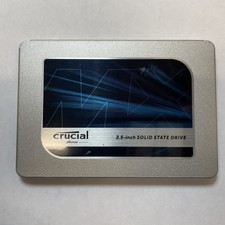
Crucial MX500 1TB 2.5" SATA III Internal SSD CT1000MX500SSD1
$99.99
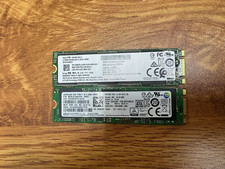
2 PACK 128 GB SSD M.2 2280 SATA Solid State Drive Major Brands, Samsung, LiteON
$28.00
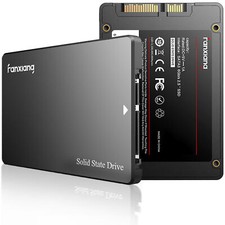
Fanxiang 256GB 512GB 1TB 2TB 4TB SSD Lot 2.5'' SATA Internal Solid State Drive
$42.99
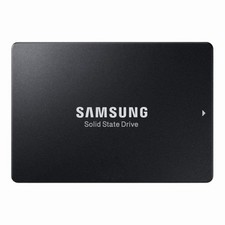
Samsung 860 EVO 250GB SSD MZ-76E250 2.5" SATA III Solid State Drive -
$39.99
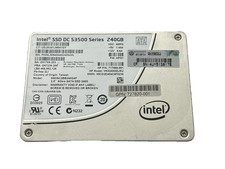
Intel Solid-State Drive DC S3500 Series 240GB Internal 2.5" (SSDSC2BB240G4P) SSD
$29.99



 Reply With Quote