

I'm posting this message for others who may have the same problem I encountered. I have run various versions of Knoppix (on live CD not installed) and with all of them, when I tried to install my printer, an Epson Stylus Photo 820, which is networked on a WindowsXP SP2 machine I was getting this message: Error returning browse list NT_STATUS_ACCESS-DENIED
I got a lot of advice about it being a windows problem, about changing Windows Passwords, Knoppix Passwords, using su commands, etc. Nothing worked. I found the solution on a Mepis Forum and discovered that Knoppix, Mepis and other distros have this problem. It has been submitted to the Mepis community for possible correction. I really don't know why this works but for anyone encountering this problem here's a blow-by-blow description of what I did to be able to successfully use my shared printer on a windows machine:
Activate CUPS: Go into the Konsole and type su, enter, and at the prompt type: /etc/init.d/cupsys start
Then go to: Knoppix/Configure/ Configure printers The KDE Control Module opens.
Click Add then, in the drop down menu, click Add Printer/Class. In the Wizard Window that opens click next and then select SMB shared printer (Windows) Now here's where it gets tricky.
In the User Identification Module select Anonymous then click next. In the next window click scan. Your workgroup MSHOME should show up. Click the plus sign and your computers on the network will show up. click the plus sign next to the computer with the printer that you want to access. At this point you will probably get the above error message.
Click the back button and in the previous window select guest and then click next. DO NOT SCAN AGAIN!!! Just click on the plus sign next to the computer whose printer you want to activate and the printer should now show up. Click on the printer and the dialog settings at the top will fill in. In the next window select the printer, click next, and in the next window if you select the recommended software you will probably be denied access again. So select the alternate and click next. At this point you should be able to send a test page to the printer. If it's successful just continue clicking next and filling in the info requested until you're finished. Then go back to the main window and your printer shoud be one of the icons. Make it the default printer and save your configuration to a floppy or your hard drive for next time. Good luck!
 Posting Permissions

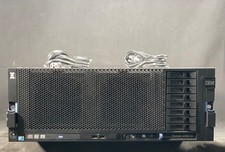
IBM System X3850-X5 Server w/4x Intel Xeon E7-4870 CPU , 512 GB DDR3 RAM,NO HDD
$1599.99
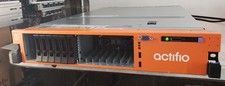
IBM 7915 AC1 M4 E27R704 Server Intel 2650V2 32GB RAM NO HDD w/ 2x 750w PSU
$225.00

Unused IBM 09P0037 MAINBOARD For RS/6000 7044-170 P-Series
$375.00
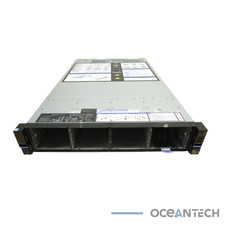
IBM QRadar xx29 2x Xeon E5-2650v4 2x 900W PSU M5120 12x 3.5" Bay Server No RAM
$179.99
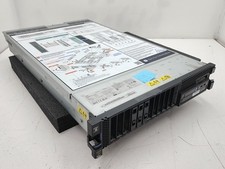
IBM Power 8 S822L Server 8247-22L POWER8 Enterprise 256GB RAM 2x 00KV626 CPU
$999.99
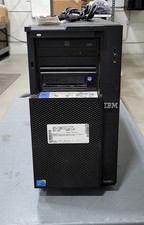
IBM SYSTEM X3500 M3 SERVER 7380AC1 TOWER Server XEON E5620 8GB RAID SEE NOTES
$110.30
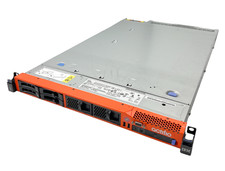
IBM System x3550 M3 1U Server 2x Xeon E5645, 192GB RAM, 2x 300GB HDD (7944-AC1)
$150.00
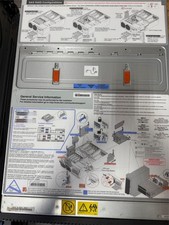
1 X IBM 720 POWER SERVER WITH 32 GB RAM
$344.97
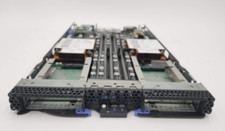
IBM ADP Server Type 7870 AC1 NO HDD | 128GB RAM PC3L | 2 x Xeon E5620
$199.99
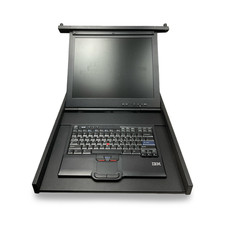
IBM EMC 091-000-091 17 Inch Rackmount LCD Keyboard KVM Console 03N7012
$109.99


 Reply With Quote