-
Administrator
Site Admin-
Well DaXiuyi, what I can say is that the data that you have posted looks perfectly correct. And the fact that you can use Konquror as a browser supports that; it's able to access the Internet just fine. Which gets us back to Firefox, and pretty much right back to where we started, I'm still at a loss to know what that isn't working for you. I've rechecked and we are not in the HDD install forum and you have never indicated that you "installed" Knoppix, but as long as we're not fighting clasic networking problems that show up after such nonsense then we have a reeal puzzle here.
Of course, someone smarter than I may step in and know exactly what the issue is. We can hope that will happen. But while we're waiting and hoping, if you're interested in rolling up your sleves and getting your hands dirty in the guts of networking, I can tell you what my next step would be if this was my system. That next step (all I can think of at the moment) would be to actually look and see what is happening. In this case that's done by something called packet sniffing. This simply means looking at the blocks of data (packets) sent out and hopefully received when you try to access a web page. Looking at them byte by byte to see what parts of the packets look correct and what parts may look wrong, or what packets just never seem to happen and figure out why.
This may sound scarry (it sure as hell sounded complex the first time I tried to do it), but it's quite doable if you don't let it intimidate you. And there is a packet sniffing program called ethereal that you can use to do it. And guess what, ethereal just happens to be already included in Knoppix, so all you have to do is run it and, oh yea, interpret the captured data. I'll try to pass along enough info to make you dangerous.
Try this (what's the worst that can happen?): Boot Knoppix. Leave Konquror running. Run ethereal. I usually run it from the command prompt, but it's in the menus somewhere too. I also usually run it from the root account (sudo ethereal), which is a must if you are sniffing the wire and capturing traffic from other systems, but in your case you only need data to and from your own computer so you should not need root access if you don't want to use it. So with that info, start ethereal any way that you think suitable. I would open a terminal and type sudo ethereal or just open a root terminal and type ethereal.
Ethereal has a nice graphical interface, so a splash screen should show up, followed by a graphical window. The window will not be too scary at first, as there will not be much in it. But there will be an awful lot of options across the menu line. The place to start is with Capture and the second choice under that, options...
Now it's getting interesting, there will be lots of choices that may look like geek speak. At the top of the new window will be a drop down menu to pick which interface you want to sniff. These should include eth0, lo, and a pseudo interface. there may also be other interfaces here, depending on what networking hardware you have on your system. I expect and hope that you want eth0 (but make a note if there are any choices beyond the 3 that I mentioned). Leave the Link-layer setting below that set to ethernet. Don't check the Permiscious mode box in this case (although it will not matter if you do as long as you are doing this as root). Leave the "limit each packet" line unchecked. Leave the capure filter line blank, Leave the capture files section empty and don't put anything in the Stop after... section. To the right of these two I like to check the "update packets in real time" and then the "automatic scrolling" option that appears under it, but you can leave these unchecked if you want. Under name resolution check the first and third options, MAC and Transport and leave the middle option, network name, unchecked. I think this is what it will default to.
OK, that's the setup, now you're ready to capture packets. Say a prayer to your god and press the start button.
Within a few seconds you should see a window that shows how many packets of each type have been captured. It should start with no packets. But if you wait a few minutes you may see some background backets on the network, things like ARP packets. We don't really care about those though, and will have to ignore them in picking through the packets to understand this problem.
OK, remember that I said to leave Konquror open? Now would be a great time to switch back to Konquror. I would put a URL in the Konquror window and capture some packets. But don't capture a website like this one's packets, that would be way more traffic to pick through than you want to start with. I would suggest a nice simple clean website like http://checkip.dyndns.org/ . This site returns one simple string, no graphics, no frames, nothing complex, so it's a nice site to use for sniffing 101. Feel free to sniff other sites later, you'll learn a lot, but for now you just want to get basic packets worked out. Plug the above url into Konquror and let it load the page. When you have a string in the window, switch back to ethereal and hit the stop button to tell it to stop capturing packets. You should now see a window of all the packets that are involved in looking up that web page and getting you your line of text back.
OK, still with me? I'm not going to try to go into detail about what each packet is, but you should be able to see the packets from your computer that look up checkip.dyndns.org's IP from the URL, and then the packets that make the connection to the site and get the information. Scan through the list and see if you can't make sense of it. If you highlight any line you should see information about it in the middle third of the window and the raw packet byte by byte in the bottom window, but the most useful info is not the raw data but the human formatted representation of it in the top and middle windows. These will tell you key things like the source of the packet and the destination that it is being sent to. All of these packets (about 18 of them in this case) are sent and received to request and get this one line of text.
OK, now what? Same thing, but start Firefox and capture it's packets as it tries to access the same page. If it fails, as we expect, stop the sniffer and see what is different. Is Firefox trying to talk to a different address? Is it failing to look up the IP address? Is it getting the correct IP address? Is it making a connection to dyndns.org? Once you know what is going wrong you can try to determine why it is going wrong and then correct it.
One other thing that you might want to try is to bypass the DNS lookup and plug the correct IP address right into Firefox. If it can get to the website this way then you should suspect DNS, if it still can't get to the website then it's not a DNS issue, so you learn something either way. The IP address is 204.13.250.51 .
Good luck, let us know how it works out.
Similar Threads
-
By Dark_W0lf in forum General Support
Replies: 4
Last Post: 01-12-2006, 08:47 PM
-
By Doppelbock in forum Hdd Install / Debian / Apt
Replies: 1
Last Post: 06-19-2004, 01:21 AM
-
By mindmeddler2003 in forum General Support
Replies: 1
Last Post: 02-03-2004, 07:29 PM
-
By Yattaman in forum General Support
Replies: 4
Last Post: 08-23-2003, 07:10 PM
-
By iconfly in forum General Support
Replies: 1
Last Post: 08-03-2003, 07:51 PM
 Posting Permissions
- You may not post new threads
- You may not post replies
- You may not post attachments
- You may not edit your posts
-
Forum Rules


KNOPPIX 9.1 Linux Install & Live DVD 32bit & 64bit
$19.99
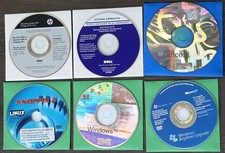
Windows XP, Vista, 8.1, Linux Knoppix, Office XP, (6 CDS)
$10.00
Knoppix Live GNU Linux System 9.1 on Bootable CD / DVD / USB Flash Drive
$5.99

KNOPPIX USB DVD OS , BEST OF ALL HIGHLY RECOMENDED
$11.99
Knoppix Linux Bootable OS v8.6 "Original Live Operating System" 16G USB Stick
$20.85

VINTAGE SOFTWARE | KNOPPIX STD 0.1 (SECURITY TOOLS DISTRIBUTION)
$7.57
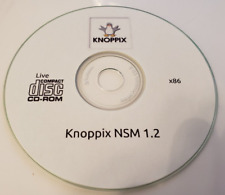
Knoppix NSM 1.2
$8.00
Knoppix Linux Bootable OS v8.6 "Original Live Operating System" 32G USB Stick
$21.42
Hamshack Live DVD-ROM
$7.00

Knoppix 5.0.1 ULTRA RARE Linux DVD - Linux Pro Extra August 2006
$33.72



 Reply With Quote