-
Senior Member
registered user
To all of you, first you need to make sure that your graphics card has
Nvidia acceleration.
For this it is neccessary to use apt-get or synaptic and install
nvidia-glx
nvidia-kernel-common
nvidia-kernel-2.6.18-4 (kernel sources)
OR the kernel sources for kernel 2.6.19 . Knoppix 5.1.1uses kernel 2.6.19 by default and if like me your CD or DVD was a cover disk then you may not have the kernel sources. This is why I used apt-get to install kernel 2.6.18-4.
After installing the packages check that Nvidia acceleration is enabled. You should see a Green and white Nvidia splash screen, log out of kde and restart the xserver, ctrl-alt-backspace
If no splash screen appears then the your /etc/X11/xorg.conf file may need modifying.
This is especially true in your case joeylutledge. In the section "Device"
Section "Device"
### Available Driver options are:-
# sw_cursor is needed for some ati and radeon cards
--snip--
Identifier "Card0"
# auto-generated by KNOPPIX mkxorgconfig
Driver "nv"
VendorName "All"
Change the line that starts Driver from nv to nvidia as below:
Driver "nvidia"
You should now see an Nvidia spash screen when starting kdm. If this works then from a terminal type glxinfo. This will generate lots of output
including whether your card has the glx extensions. Sample below:
anc@orac:~$ glxinfo
name of display: :0.0
display: :0 screen: 0
direct rendering: Yes
server glx vendor string: NVIDIA Corporation
server glx version string: 1.4
server glx extensions:
GLX_EXT_visual_info, GLX_EXT_visual_rating, GLX_SGIX_fbconfig,
GLX_SGIX_pbuffer, GLX_SGI_video_sync, GLX_SGI_swap_control,
GLX_ARB_multisample, GLX_NV_float_buffer
client glx vendor string: NVIDIA Corporation
client glx version string: 1.4
client glx extensions:
GLX_ARB_get_proc_address, GLX_ARB_multisample, GLX_EXT_visual_info,
GLX_EXT_visual_rating, GLX_EXT_import_context, GLX_SGI_video_sync,
GLX_NV_swap_group, GLX_NV_video_out, GLX_SGIX_fbconfig, GLX_SGIX_pbuffer,
GLX_SGI_swap_control, GLX_NV_float_buffer, GLX_ARB_fbconfig_float
GLX version: 1.3
GLX extensions:
GLX_EXT_visual_info, GLX_EXT_visual_rating, GLX_SGIX_fbconfig,
GLX_SGIX_pbuffer, GLX_SGI_video_sync, GLX_SGI_swap_control,
GLX_ARB_multisample, GLX_NV_float_buffer, GLX_ARB_get_proc_address
--snip--
Now for the last part, open a terminal and type
beryl-mangager
You should see a splashscreen followed by a diamond in the kde tray. If so, try switching to desktop 2 or 3 the screen will rotate. Hold down ctrl and alt and
grab the top left corner of the screen, you should be able to roate and spin your desktop cube.
If something fails:
Try and restart the x-server by pressing ctrl-alt-backspace
If you have a garbled display, look closely you may find part of an error message that is readable.
Check dmesg and /var/log/Xorg.0.log for clues.
In my case my Sparkle Nvidia Geforce 5700 Ultra card did not support GLX textures at the default colour depth which was 16 bit. I changed this
to 24 bit in my xorg.conf file and it worked.
Good luck.
Similar Threads
-
Replies: 0
Last Post: 03-31-2007, 11:56 AM
-
By Nihility in forum Hardware & Booting
Replies: 0
Last Post: 03-27-2007, 03:02 PM
-
By artturi in forum Customising & Remastering
Replies: 0
Last Post: 03-28-2006, 08:17 PM
-
By tuxcrazy in forum The Lounge
Replies: 3
Last Post: 04-30-2004, 06:12 PM
-
By srinivasan in forum General Support
Replies: 4
Last Post: 06-13-2003, 02:50 AM
 Posting Permissions
- You may not post new threads
- You may not post replies
- You may not post attachments
- You may not edit your posts
-
Forum Rules


HP DL580 G9 4U Server 4x Xeon E7-8890 v3 2.5Ghz 72-Cores | 512GB RAM | 4x 1TB
$2619.99
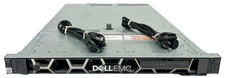
Dell EMC PowerEdge R440 Xeon silver 4215 2.5GHz 16 GB ram 2x 550W PSU No HDD
$275.00
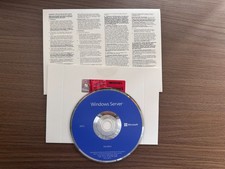
Microsoft Windows Server 2022 Standard 64-bit License & DVD 16 Core US Shipping
$34.99
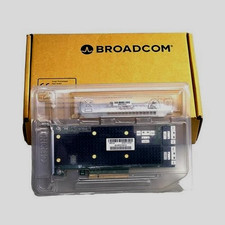
Broadcom 9600-24i Tri-Mode RAID Controller 4.0 NVMe SAS SATA NEW 05-50111-01003
$639.69
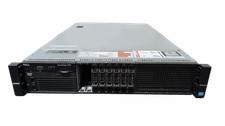
Dell Poweredge R720 8SFF 2.5" x Xeon E5-2680 v2 2.8GHz 20-Cores 128gb 4x Trays
$349.99
Dell Poweredge R720 8SFF 2.5" 2x Xeon E5-2680 v2 2.8GHz 20-Cores 64gb 4x Trays
$259.99
Dell PowerEdge R620 2x Xeon E5-2630 v2 3.1GHz 2.5" 4-BAY 32GB RAM No OS 2x 495w
$174.95
Supermicro 1027GR-TSF 1U Rackmount Server 2x Xeon 2.3GHz 128GB DDR3
$219.99
![WINDOWS SERVER 2025 [REMOTE DESKTOP SERVICES] 50 USER RDS CAL SEALED picture](/store/img/g/Fn8AAOSwCcpn9N3z/s-l225/WINDOWS-SERVER-2025-REMOTE-DESKTOP-SERVICES-50-USE.jpg)
WINDOWS SERVER 2025 [REMOTE DESKTOP SERVICES] 50 USER RDS CAL SEALED
$119.18
![WINDOWS SERVER 2022 [REMOTE DESKTOP SERVICES] 50 USER RDS CAL SEALED picture](/store/img/g/JtMAAeSwrw5pwLZa/s-l225/WINDOWS-SERVER-2022-REMOTE-DESKTOP-SERVICES-50-USE.jpg)
WINDOWS SERVER 2022 [REMOTE DESKTOP SERVICES] 50 USER RDS CAL SEALED
$113.09



 Reply With Quote