-
dual boot
Dual booting Vista/Linux
Following my post the other day on setting up an XP/Linux dual-boot system I received a number of enquires about setting up a Vista/Linux dual-boot system where the system already has Windows Vista installed. The basic process isn’t all that dissimilar to setting up an XP/Linux dual boot rig, the main difference being that you have to make a tweak to the Windows partition from within Windows Vista.
Here’s the deal:
1. First, start off with a machine with Vista already installed on it and all data securely backed up (use Vista’s Backup and Restore Center or use a similar product).
2. Next, download a Linux distro. Again I’ll be using my personal favorite, Ubuntu 7.04 Feisty Fawn.
3. Burn a CD of the ISO you downloaded and put it on one side for a moment.
4. Fire up Windows Vista.
5. Click Start, then right-click on Computer and select Manage then click on Disk Management (click Continue on the User Account Control screen).
6. Find your Windows partition from the list of partitions and right-click on it. Select Shrink Volume …
7. The Shrink dialog box will tell you how much space you have to play with. You’ll ideally need at least 4GB for Linux. Enter the amount of space you want to shrink the partition by and click Shrink. This will take a while depending on the size of your disk and how much space you’re freeing up.
8. When the process is done you’ll notice that the disk now has a smaller primary partition (containing your Vista install) and the space you freed up in the form of unallocated space.
9. You’re done in Vista. Shut down the OS.
10. Now you need to boot up off the Linux CD you created earlier.
11. Start the install process. This will take you through the Welcome, Where are you? screen and the Keyboard layout screens.
12. Now you’ll come to the disk partitioner. Choose Guided - use the largest continuous free space. This will now automatically select the unallocated space that you freed up earlier in Vista. Click Forward.
13. Proceed with the installation as normal.
14. When the system boots up from now on, you’ll be greeted by the GRUB boot menu. From there you can choose which OS to boot into.
15. That’s it! Yes, it’s that simple.
By Adrian Kingsley-Hughes
I found this on another site hence i have included the authors tag
Similar Threads
-
By deepak_abc in forum Hdd Install / Debian / Apt
Replies: 20
Last Post: 08-08-2007, 03:05 AM
-
By destro in forum MS Windows & New to Linux
Replies: 4
Last Post: 04-01-2007, 11:08 PM
-
By doesnotcompute in forum Hardware & Booting
Replies: 1
Last Post: 03-01-2005, 07:29 PM
-
By Bonster in forum Hardware & Booting
Replies: 3
Last Post: 02-04-2005, 10:52 AM
-
By jimbo62 in forum MS Windows & New to Linux
Replies: 4
Last Post: 08-09-2004, 04:22 PM
 Posting Permissions
- You may not post new threads
- You may not post replies
- You may not post attachments
- You may not edit your posts
-
Forum Rules

RAM-HOL-SAM60CPU RAM USB-C Powered Dock for Samsung Tab Active5 - 3 - 2
$81.99
Samsung 2.5" 870 EVO SSD SATA III 250GB 500GB 1TB Internet Solid State Drive Lot
$60.00
WiFi Only Samsung Galaxy Tab A9 Plus 11.0" 128GB Black SM-X210
$139.99
NEW Samsung NoteBook NT930QCG touch LCD Full Screen Assembly Blue
$225.77
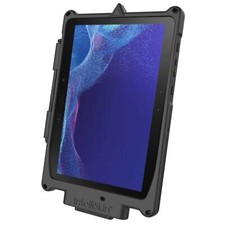
RAM-GDS-SKIN-SAM54-NG-1 RAM Mounts IntelliSkin® Next Gen for Samsung Tab Active4
$93.99
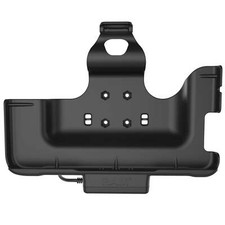
RAM-HOL-SAM52CPU RAM USB-C Powered Dock Samsung Tab Active4 Pro & Tab Active Pro
$81.99
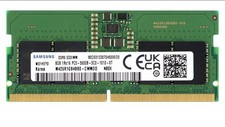
Samsung 8GB DDR5 5600MHz SODIMM Laptop RAM PC5-44800 CL46 M425R1GB4BB0-CWM
$99.99

Cell Phone Smartphone Computer repair banner poster sign iphone Samsung
$119.99
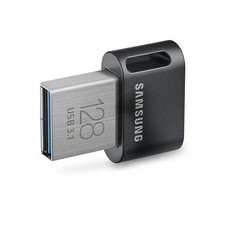
SAMSUNG FIT PLUS 128GB USB 3.1 Flash Drive - fully working & authentic
$24.95
M386A8K40DM2-CVF SAMSUNG 64GB (1X64GB) 4DRX4 PC4-2933Y SERVER MEMORY
$1200.00



 Reply With Quote