-
Digital Clock adjust time date format colors
I made several searches and did not find this particular topic, it may be my bad search terms, so I thought I would post it in case anyone could use it.
Digital Clock "Digital Clock" panel clock format change numbers dates AM PM colors
This does not change the TIME of the clock setting, merely what is displayed.
Changing the numbers and colors is done in two places:
a) “Digital Clock settings” for the day, hour etc.
b) Panel settings for the color of the numbers.
A) To change the DISPLAY of numbers to show say, hours and minutes, and AM or PM (Given that you have actually added the clock), you right click on the clock and you will see:
“Digital Clock Settings”.
Click that.
You will see an interactive box and the top of the box will have a white box labled “Clock Format” within which you can place various scripts for displaying different information.
The scripts are standard for the clock and are in the format of “%letter” without the quotes(notice also there is no space between the percent sign and the letter).
So to have this displayed in the clock:
hh:mm(hours and minutes)
you would enter:
%R
if you wanted to add “am or pm”(the bios will correctly provide am or pm) to the clock in small case or capitals you would enter either:
%p or %P
You would see something like 1:35 AM if you entered %R%P.
There are MANY variations of this which includes things like bolding etc. which can be found at
this site:
You can also “play” with the clock in that you could type something like “woodsmoke's time is: ” either before or after the things like %R%P to snazzy things up.
B) To change the color of the numbers and letters in the clock display.
The default of the clock is “black” letters/numbers. To change this to “white(or another color)” letters/numbers, right click anywhere on the panel and then click “panel settings”.
In that box you will see under the “General” tab at the bottom “font” if the button is up the numbers will display in black and if it is depressed the “custom” color of white is displayed.
Clicking the button will change the color in real time, so that you can check it without having to open and close.
If you want a color other than white you should click on the “white” color box and you will see the KDE “color wheel” that is found in image programs like GIMP etc. and you can pick a color.
Hope this helps someone and if anyone has questions, please ask.
woodsmoke
Similar Threads
-
By GottaBuild in forum General Support
Replies: 1
Last Post: 03-13-2007, 05:50 PM
-
By lilsirecho in forum The Lounge
Replies: 2
Last Post: 10-21-2004, 11:07 PM
-
By Dreamofgilgamesh in forum General Support
Replies: 4
Last Post: 10-03-2004, 05:12 PM
-
By Nathan Larson in forum Hdd Install / Debian / Apt
Replies: 2
Last Post: 09-05-2004, 05:45 PM
-
By LordHarshmage in forum General Support
Replies: 1
Last Post: 05-06-2003, 08:28 PM
 Posting Permissions
- You may not post new threads
- You may not post replies
- You may not post attachments
- You may not edit your posts
-
Forum Rules

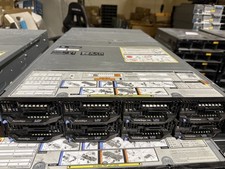
Dell PowerEdge FX2s + 8x FC430 Blades 16x E5-2630v4 160 Cores Rails No PSU/RAM
$699.00
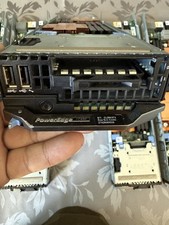
Dell PowerEdge FC430 Blade Server 2x Xeon E5-2630v4 20 Cores FX2 FX2s No RAM/HDD
$119.99
Dell PowerEdge M620 Blade Server 2x Xeon E5-2680v2 2.8ghz 20-Cores | 128GB
$149.99

Dell PowerEdge M640 Blade Barebone Server Dell P/N: HHB006 Tested Working
$149.99
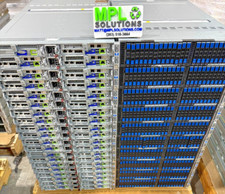
NETAPP HCI NAF-1701 SuperMicro Server 4X BLADE H410C 8X GOLD 5120 4 NODE SERVER
$1499.97
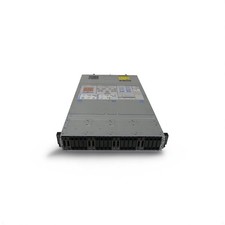
Dell Poweredge C6400 24x 2.5’’ 2x 2400W 4x C6420 Nodes H330 | 2x SFP | 8x Trays
$799.99

Dell PowerEdge FX2 FX2s Server 10GbE CMC Blade Enclosure Chassis
$274.99
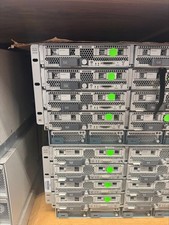
LOT (8) Cisco UCS UCSB-B200-M5 2x6248R 24 core 3.0G 24x64g DDR4-2933 ram
$112000.00
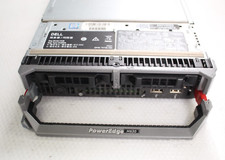
Dell PowerEdge M630 Blade Server 2x Xeon E5-2680 v4, 2F3MP , 4GDP5 ,R10KJ ,JVFVR
$96.60
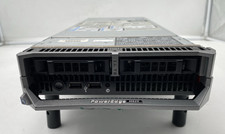
Dell PowerEdge M620 Blade Server 2x Xeon E5-2680v2 256GB DDR3 RAM NO HDD
$349.99



 Reply With Quote