-
Finding Vista HD when using Knoppix for data recovery...?
Hi there,
I am a complete noob to Linux and only marginally more advanced at troubleshooting Windows. I found Knoppix as a possible way to retrieve data on my laptop, which I can't boot up (disk read error). I have already tried the system recovery approach through Vista disks but can't even get to an input option. My computer is still under warranty with Dell but they simply want to wipe the drive and/or replace it, without helping with data recovery at all - so I'm desperately trying to get my files first.
I have burned a CD to boot from (Knoppix 6.0.1, I believe). It does open up a Linux desktop and I can see the USB thumb drive I'm hoping to put my data on...but I can't figure out how to see my laptop hard drive to capture my files. I went to the Rescue FAQs and attempted to follow the info provided here: http://www.knoppix.net/wiki/Rescue_F...ue_the_data.3F. Unfortunately, the linked tutorials refer to a much older version of Knoppix and don't mention Vista. The current version of Knoppix that I have doesn't match what is shown.
So here's my questions:
- Can anyone point me to a simple walk-through or provide clear info on how to use Knoppix to recover data from a Vista laptop?
- Specifically, how do I find or access my Vista hard drive? Do I need to "mount" the drive first or something? (not totally sure what that means...)
- Should I be using a different version of Knoppix then 6.0.1?
Here's some specs on my computer, in case that helps:
- Dell M1530 laptop
Running Vista Home Premium 64bit
Intel Core 2 Duo Processor, t8300 (2.4GHz/800MHz FSB)
4GB, DDR2, 667MHz 2 Dimm Memory
250GB 7200RPM SATA Hard Drive
8X DVD+/- RW Slot Load Drive
Thanks so much for taking the time to read this and possibly help!
Jen
-
Senior Member
registered user
The hard drive will normally show up in the PCMan window along with your USB drive. If it hasn't so far it is possible that it has failed and needs to be replaced. There are diagnostic tools in linux that could help further , but as a newbie, you might be better served by the following:
http://www.ultimatebootcd.com/
Post back if you want to delve into using Knoppix for more help,
-
Hi Rusty,
Thanks for your suggestion. I've been fiddling around with the Ultimate Boot CD for Windows. Everything still hung up every time I tried to access my computer hard drive. I'm pretty certain there is something physical wrong with the hard drive. Dell has labeled it damaged and is sending a replacement. In the meantime, I'm still trying to sneak in some way and capture some of my data in any way possible ($1500 - $3000 and up for a data recovery service is definitely out of my range  ). Although I'm a newbie, I'm thinking I might as well try to stumble my way through Linux/Knoppix stuff and see if I can get better results. Since the data is probably lost in any case, what have I got to lose? Any suggestions on where to begin? I read somewhere that I might be able to do something from the root command line but have no idea where to start with that...
Thanks!!!
Jen
Oh, also saw reference to something called testdisk that might have worked for some folks but couldn't figure out how to access it through Knoppix...
-
Senior Member
registered user
testdisk is installed on 6.0.1 so give it a try. Open a root console(shell) by choosing root shell from the Accessories menu. You may have to resize the window to allow testdisk to run.
Here is a tutorial for testdisk: http://www.cgsecurity.org/wiki/TestDisk_Step_By_Step
If testdisk sees the drive, you might have a chance at recovering data yourself. I'm wondering if you can hear the drive spin up when you start the computer , or if it clicks alot or anything.
Another popular, though not free product is Spin-Rite: http://www.grc.com/sr/spinrite.htm Again, if the drive is mechanically damaged, Spin Rite will not help.
-
Whew boy, ok, I'm running testdisk. The first part showed this (put in code format because it seemed to display better):
Code:
Disk /dev/sda - 250 GB / 232 GiB - CHS 30401 255 63
Current partition structure:
Partition                     Start          End        Size in sectors

1 P Dell Utility              0 1  1	    12 254 63      208782
2 P HPFS - NTFS              13 0 52     1318 107  5    20971520  [RECOVERY]
Invalid NTFS boot
3 * HPFS - NTFS	         1318 107  6    30074 207 13    461971448
3 * HPFS - NTFS	         1318 107  6    30074 207 13    461971448
4 E extended LBA          30074 207 22    30401  42 41      5242880
5 L Sys=DD                30074 239 54    30401  42 41      5240832
At least I can see that there is a drive! According to the TestDisk tutorial the "invalid NTFS boot" means that I probably have a corrupted filesystem at the very least. Started running the Quick Search but it seemed to hang up at about 13%. I pressed STOP and it offered me the option for deeper search, which is currently running. I'll wait awhile and see what happens. Any idea how long it might take to run? In other words, how will I know when to abort due to no progress?
Not much in the way of sounds that I can tell, a very faint brrrrrt sound, rhythmic (meaning regular every other second) but can't tell if that is the fan or something...I didn't pay attention to the normal sounds of the laptop before the crash. The damn thing is only a couple of months old.
If the drive is physically damaged, is there still a chance I could remove it from the laptop and hook it up to a desktop and maybe still salvage something? And can you hook a laptop hard drive into a desktop motherboard and power supply anyway? I have an old XP box I can use for this (had to do it with a bad desktop hard drive once before, but I don't think there was physical damage to that one).
Saw a reference to a companion program to testdisk called PhotoRec...is it in Knoppix too? I found step by step tutorial for it too...
-
Senior Member
registered user
Looks like you have a chance at recovering something. Accoding to http://www.debian-administration.org/articles/420 photorec is bundled with testdisk, so give it a try.
A separate drive enclosure like this one might be what you could use: http://www.newegg.com/Product/Produc...82E16817707116. I think Radio Shack sells something similar, if you have one nearby.
-
Okay, I think I might have a slim chance of accessing some files here. My question now concerns the newest version of Knoppix (6.0.1). I can't figure out how to change my USB External HD (Western Digital My Book) to writable so I can put any recovered files there when I use PhotoRec. In the newest Knoppix version, the Lightweight Desktop Environment only has a My Documents folder on the desktop, not the icons for the different drives. I can see my external drive in PC Man File Manager but can't seem to change the read/write permissions. How on earth do I do it in Knoppix 6.0.1? Should I be doing it from the root terminal with command line commands instead? If so, how do I do that? I've read over a bunch of lists of Linux commands but am a bit overwhelmed!
Also, when asked which directory to use for saving recovered files when I'm actually in the PhotoRec program, I'm not sure how to tell which one is my external drive. Definitely don't want to write anything to the damaged HD! Perhaps I will be able to tell this by the permissions once I can change them?
Thanks so much for the ongoing help!!!
-
Senior Member
registered user
I can see my external drive in PC Man File Manager
ok, highlight the drive and click Alt+Return, or File, File prperties from the PCMan menu bar. Note the location, probably /media, and the filename, possibly sda#, so the drive is mounted on /media/sda# (ie sda1). That is where you want Photorec to save your files.
but can't seem to change the read/write permissions
On the PCMAn dialogue that opened when you highlighted the drive, you will see a permissions tab, try changing them there and see if it works. You can also try entering a command in a root shell.
Code:
chmod -R 777 /media/sda#
.
I know that some people have had issues with MyBooks in linux, and I havent had any experience with one myself.
Be forwarned that some users believe that writing to NTFS formatted drives is not safe with Knoppix, I tend to avoid it. I don't know how the WD drives come formatted.
-
I thought I had changed the permissions for the MyBook (which is FAT not NTFS, thank goodness)...but I don't see an option with rwxrwxrwx in the PhotoRec list. And it doesn't say sda or sdb or any other way I might identify which partition I should choose (size, manufacturer, etc.).
The display in the PhotoRec program to choose where to write recovered content is as follows:
Code:
Do you want to save recovered files in /home/knoppix ? [Y/N]
Do not choose to write the files to the same partition they were stored on.

To select another directory, use the arrow keys.
drwxr-xr-x     1000     1000          320     1-Jul-2009 12:52 .
drwxr-xr-x        0        0         2048     2-Dec-2008 20:20 ..
drwxr-xr-x     1000     1000           40     1-Jul-2009 12:49  Desktop
-rw-r--r--        0        0        40960     1-Jul-2009 12:52 photorec.ses
How do I determine which one to use since I definitely don't want to overwrite the data I'm trying to recover!
EDIT: put PhotoRec stuff in code again to preserve formatting.
-
In researching PhotoRec, it keeps saying that it will put the recovered files in in the directory from where you are running the PhotoRec program. Since I'm running from a Live CD I am hoping to write to my MyBook...or another USB drive if necessary. I didn't see any other way to change where the files are placed in PhotoRec...I'm guessing the list of options above doesn't even show my MyBook? Surely there is some way to change the write directory, perhaps at the root command line by accessing PhotoRec files or something?
 This is definitely a bit over my head, but I'm learning a lot!
Similar Threads
-
By andyp in forum MS Windows & New to Linux
Replies: 2
Last Post: 01-11-2008, 04:36 PM
-
By mustjustbe in forum MS Windows & New to Linux
Replies: 0
Last Post: 06-10-2007, 03:32 AM
-
By comfortably numb in forum MS Windows & New to Linux
Replies: 2
Last Post: 11-20-2005, 09:09 AM
-
By OpenIntro in forum Hardware & Booting
Replies: 27
Last Post: 04-05-2005, 10:59 PM
-
By cohyster in forum General Support
Replies: 0
Last Post: 01-03-2005, 06:01 PM
 Posting Permissions
- You may not post new threads
- You may not post replies
- You may not post attachments
- You may not edit your posts
-
Forum Rules

Netac DDR4 32GB 16GB DDR4 3200MHz UDIMM C16 Desktop Internal Memory RAM Kit
$99.99
32GB KIT (2x16GB) DDR4 2666MHz PC4-21300 - 288 pin DESKTOP Non ECC - Black/Gold
$121.00
Major Brand 16GB (2x8GB) PC3-12800U DDR3-1600MHz DDR3-12800 DESKTOP RAM NON-ECC
$29.99
A-Tech 8GB DDR3 1600 PC3-12800 Laptop SODIMM 204-Pin Memory RAM PC3L DDR3L 1x 8G
$21.68
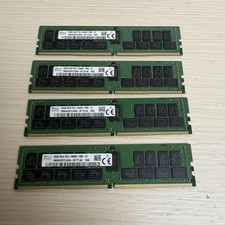
128GB (4x32GB) SK hynix DDR4 PC4-2666V RDIMM ECC Server Ram HMA84GR7CJR4N-VK
$799.00
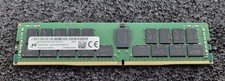
32GB Micron PC4 – 3200AA DDR4 ECC Registered Server RAM - MTA36ASF4G72PZ-3G2J3
$200.00
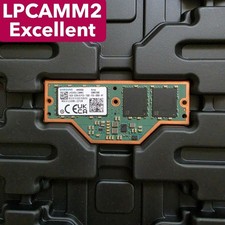
Samsung 16GB LPCAMM2 PC5 7500 DDR5 LPDDR5X CAMM2 M561K1LC4DM0-CCTGM RAM Memory
$189.00
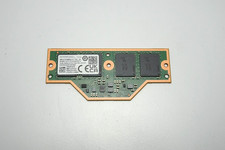
RAMAXEL Lenovo 32GB LPDDR5X CAMM2 7500MHz Laptop RAM | UNTESTED
$445.00
Micron 32GB 1x32GB DDR5 5600 CL46 ECC Unbuffered SO-DIMM MTC20C2085S1TC56BD1
$399.00
Dell 16GB PC4-21300 (DDR4-2666) Memory (SNPPWR5TC16G)
$89.99



 Reply With Quote