-
Senior Member
registered user
if you use Linux or Unix on both drives simply run the modified command below in a console, it is explained how you modifie it below
Code:
cp -dprx /media/file-system-to-be-copied/ /media/file-system-to-copy-to
here is what the different letters mean
cp is copy
-d same as --no-dereference --preserve=links
-p same as --preserve=mode,ownership,timestamps
-r, --recursive copy directories recursively /everything under that directory only a few . files may get lost
-x, --one-file-system stay on this file system
replace the paths to suit your needs
./media/file-system-to-be-copied/ and /media/file-system-to-copy-to are what I call the "paths" to the filesystems you want to copy, for you likely something like /media/sda1 and /media/sdb1
the drive is called (if scsi or sata) sda, sdb, sdc, sdd... or (If ATA IDE) hda, hdb, hdc...
the number is simply the partition number on that drive
you can see a list of the different drives and partitions by typing
in a console, that letter after fdisk - is lowercase, "L" by the way, not a capital "i".
when you know what they are called you can mount those drives (so you can copy or just list the files) by typing
Code:
sudo mount /media/sdXY
where X and Y is what you need to mount.
as it is two disks it should work flawlessly BUT! knoppix unionfs may make things complicated, I have had the command break things on two occasions when using knoppix, so I use a Debian install disk for this now.
the CP command will copy everything but some .files/directories (hidden files like configurations) if they are directly in the first directory, but those you can copy separately if needed by typing
Code:
cp -dprx /first/file-system/.* /second/file-system
hope I was of help, if not keep asking
Similar Threads
-
By r0x in forum Hdd Install / Debian / Apt
Replies: 0
Last Post: 04-15-2009, 10:22 PM
-
By edugualti in forum Hardware & Booting
Replies: 1
Last Post: 02-06-2006, 11:41 PM
-
By husalah5150 in forum General Support
Replies: 3
Last Post: 11-22-2005, 05:06 PM
-
By Lintu in forum Hdd Install / Debian / Apt
Replies: 1
Last Post: 10-20-2005, 06:13 PM
-
By kidsatacrux in forum MS Windows & New to Linux
Replies: 19
Last Post: 08-03-2004, 07:41 AM
 Posting Permissions
- You may not post new threads
- You may not post replies
- You may not post attachments
- You may not edit your posts
-
Forum Rules

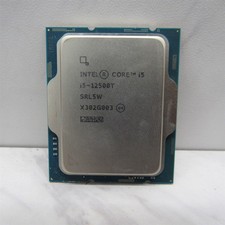
Intel Core i5-12500T SRL5W 2GHz 18MB 6 Core Socket LGA1700 Desktop CPU Processor
$114.99
Intel Core i7-4770 3.40GHz Quad Core SR149 LGA 1150 CPU Processor tested
$35.00

INTEL CORE I9-10940X X-SERIES PROCESSOR | 3.30GHZ | SRGSH
$179.99
Intel Core i7-12700 12 Core X208K805 LGA 1700 AS IS
$99.99
Intel Core i7-9700 Octa-Core 3 GHz Desktop Processor LGA 1151
$79.99
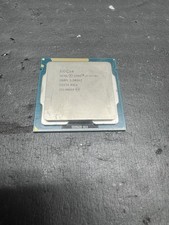
Intel Core i7-3770K 3.5 GHz Processor
$39.00
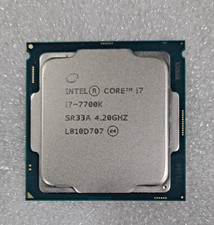
Intel Core i7-7700K SR33A 4.20GHz 4-Core LGA1151 CPU Processor
$62.95
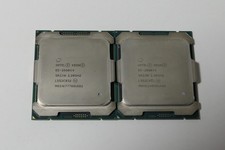
Matched Pair _ Intel Xeon E5-2698 V4 2.2GHz 20-Core Processor CPU LGA2011 SR2JW
$94.99
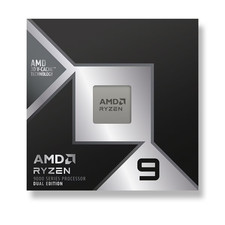
LAST BATCH *Brand New-Sealed* AMD Ryzen 9 9950X3D2 Dual Ed. 4.3GHz 16Core AM5
$768.00
Lenovo ThinkCentre M920s SFF Barebones PC Motherboard PSU DVD No CPU RAM SSD
$27.99



 Reply With Quote