

I made several searches and did not find this particular topic, it may be my bad search terms, so I thought I would post it in case anyone could use it.
Digital Clock "Digital Clock" panel clock format change numbers dates AM PM colors
This does not change the TIME of the clock setting, merely what is displayed.
Changing the numbers and colors is done in two places:
a) “Digital Clock settings” for the day, hour etc.
b) Panel settings for the color of the numbers.
A) To change the DISPLAY of numbers to show say, hours and minutes, and AM or PM (Given that you have actually added the clock), you right click on the clock and you will see:
“Digital Clock Settings”.
Click that.
You will see an interactive box and the top of the box will have a white box labled “Clock Format” within which you can place various scripts for displaying different information.
The scripts are standard for the clock and are in the format of “%letter” without the quotes(notice also there is no space between the percent sign and the letter).
So to have this displayed in the clock:
hh:mm(hours and minutes)
you would enter:
%R
if you wanted to add “am or pm”(the bios will correctly provide am or pm) to the clock in small case or capitals you would enter either:
%p or %P
You would see something like 1:35 AM if you entered %R%P.
There are MANY variations of this which includes things like bolding etc. which can be found at
this site:
You can also “play” with the clock in that you could type something like “woodsmoke's time is: ” either before or after the things like %R%P to snazzy things up.
B) To change the color of the numbers and letters in the clock display.
The default of the clock is “black” letters/numbers. To change this to “white(or another color)” letters/numbers, right click anywhere on the panel and then click “panel settings”.
In that box you will see under the “General” tab at the bottom “font” if the button is up the numbers will display in black and if it is depressed the “custom” color of white is displayed.
Clicking the button will change the color in real time, so that you can check it without having to open and close.
If you want a color other than white you should click on the “white” color box and you will see the KDE “color wheel” that is found in image programs like GIMP etc. and you can pick a color.
Hope this helps someone and if anyone has questions, please ask.
woodsmoke
 Posting Permissions

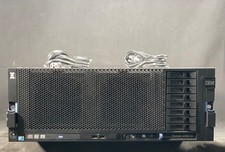
IBM System X3850-X5 Server w/4x Intel Xeon E7-4870 CPU , 512 GB DDR3 RAM,NO HDD
$1299.99

Unused IBM 09P0037 MAINBOARD For RS/6000 7044-170 P-Series
$375.00
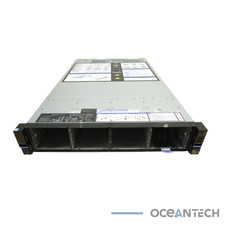
IBM QRadar xx29 2x Xeon E5-2650v4 2x 900W PSU M5120 12x 3.5" Bay Server No RAM
$179.99
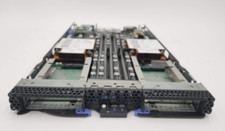
IBM ADP Server Type 7870 AC1 NO HDD | 128GB RAM PC3L | 2 x Xeon E5620
$199.99
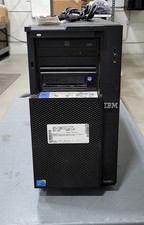
IBM SYSTEM X3500 M3 SERVER 7380AC1 TOWER Server XEON E5620 8GB RAID SEE NOTES
$108.92
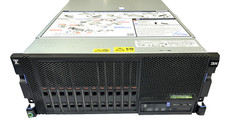
IBM Power S824 12Bay 4U Server - 2x Power8 CPU, 512GB DDR4, MT: 8286-42A
$1731.00
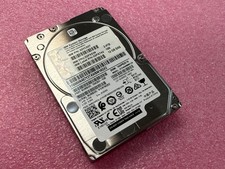
IBM 02YC027 Seagate ST2400MM0129 2.4TB 10K SAS 12Gb/s 2.5" Server Hard Drive
$200.00
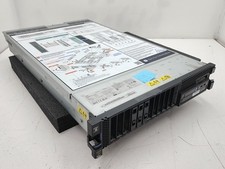
IBM Power 8 S822L Server 8247-22L POWER8 Enterprise 256GB RAM 2x 00KV626 CPU
$999.99
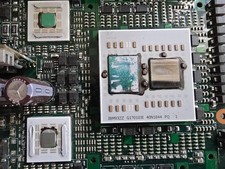
Rare Vintage IBM 93ZZ PowerPC Server Board - MCM Ceramic CPU - 40N1844 - 1.1 lbs
$49.99
IBM Server Rackmount Sliding Rail Kit ( Part Numbers: 00D9375 / 00D9374 )
$24.99


 Reply With Quote