

I made several searches and did not find this particular topic, it may be my bad search terms, so I thought I would post it in case anyone could use it.
Digital Clock "Digital Clock" panel clock format change numbers dates AM PM colors
This does not change the TIME of the clock setting, merely what is displayed.
Changing the numbers and colors is done in two places:
a) “Digital Clock settings” for the day, hour etc.
b) Panel settings for the color of the numbers.
A) To change the DISPLAY of numbers to show say, hours and minutes, and AM or PM (Given that you have actually added the clock), you right click on the clock and you will see:
“Digital Clock Settings”.
Click that.
You will see an interactive box and the top of the box will have a white box labled “Clock Format” within which you can place various scripts for displaying different information.
The scripts are standard for the clock and are in the format of “%letter” without the quotes(notice also there is no space between the percent sign and the letter).
So to have this displayed in the clock:
hh:mm(hours and minutes)
you would enter:
%R
if you wanted to add “am or pm”(the bios will correctly provide am or pm) to the clock in small case or capitals you would enter either:
%p or %P
You would see something like 1:35 AM if you entered %R%P.
There are MANY variations of this which includes things like bolding etc. which can be found at
this site:
You can also “play” with the clock in that you could type something like “woodsmoke's time is: ” either before or after the things like %R%P to snazzy things up.
B) To change the color of the numbers and letters in the clock display.
The default of the clock is “black” letters/numbers. To change this to “white(or another color)” letters/numbers, right click anywhere on the panel and then click “panel settings”.
In that box you will see under the “General” tab at the bottom “font” if the button is up the numbers will display in black and if it is depressed the “custom” color of white is displayed.
Clicking the button will change the color in real time, so that you can check it without having to open and close.
If you want a color other than white you should click on the “white” color box and you will see the KDE “color wheel” that is found in image programs like GIMP etc. and you can pick a color.
Hope this helps someone and if anyone has questions, please ask.
woodsmoke
 Posting Permissions

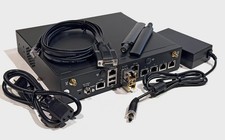
OPNsense pfSense 8-Core Atom C3758 2.2GHz 8GB DDR4 64GB SSD 8x NIC QAT AES VPN
$145.00
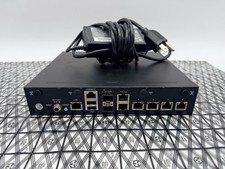
pfSense Firewall 16-Core Atom C3958 8GB DDR4 RAM 64GB SSD 8x 1Gbe QAT AES-NI VPN
$184.99

OPNsense pfSense 16-Core Atom C3958 16GB ECC RAM 512GB SSD 8-Port QAT AES-NI VPN
$288.00
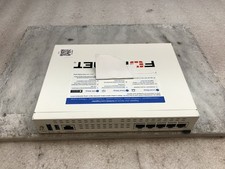
Fortinet FortiGate FG-40F Network Security Firewall NO RACK EARS
$49.99

Fortinet FortiGate 60F FG-60F P24286-03-13 Network Firewall Security Appliance
$155.75
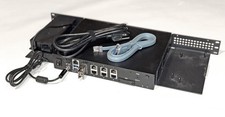
OPNsense Firewall VPN QAT 8-Core Atom C3758 2.20GHz 16GB DDR4 128GB SSD 8xNIC
$175.00
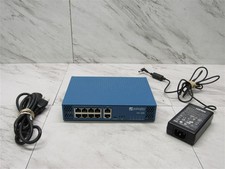
Palo Alto PA-220 Next-Gen Firewall 520-000309-00J
$40.00

Fortinet FortiGate 60F FG-60F UTM UTP License Until 2027 Network Security FW VPN
$278.99
Cisco Meraki MX67-HW Security Appliance Firewall NEW Unused Unclaimed
$202.50
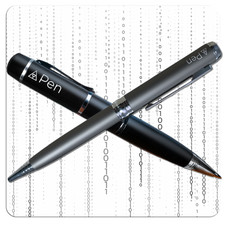
Zero Trace Pen: All-in-one Tor Network Anonymous Drive + Cryptocurrency Wallet
$147.00


 Reply With Quote