-
Starting VNC server automatically in a PXE booted client
Hello, I am working a a small customization and I don't want to re master 100% to get it done.
I am basically PXE booting KNOPPIX 6.2 via a Windows2008 terminal server. Works pretty good I have exported the NFS share and have TFTP server running and am up and booting perfectly. Its almost perfect except for 2 things.
1. I need to start up VNCSERVER automatically for the helpdesk to be able to remote support the PC
(The PCs are being turned dumb and they will network boot knoppix and RDP into a windows terminal server).
2. I need to get an RDP client icon on the desktop with an easy or centralized way to update the RDP session and connection information.
I don't want a full blown re-master done. For many reasons involving the work and Q&A but my co- workers might not be able to support it if I ever leave my job or get hit by a bus.
My preferred way is to edit the inittab.secure file(located in miniroot) to execute what I need.
Does anyone have any suggestions? I need to start VNC server and set the password for the helpdesk. As well as get the "Terminal Server Client" icon on the desktop with some way of easily updating connection info.
I was thinking of just making a saved connection file in /mnt-system and have the user load it. That way in the future I can just go in to windows server and edit the file in a txt editor to change a minor parameter if necessary.
But the stumper is VNCSERVER, getting it to start and run for the helpdesk (with their preferred password set).
Any help is appreciated.
-
Senior Member
registered user
Not sure if I understand your problem correctly.
You want to customized but yet you don't want to remaster. Then you just create a small persistent image to override the default. That will accomplish it, isn't it ?
To start VNCServer I think you can customise one of those X11 startup scripts, say in /etc/X11/Xsession.d.
As for creating an icon, it is a matter of create a file in /home/knoppix/Desktop.
-
Oh thanks for /etc/X11/Xsession.d. I think that is what i was looking for.
-
I don't want to use the hard drive if at all possible. So I will explain the situation better. We have a few thousand old P4 workstations in the field. We want to get a few more years out of them and not go to Windows7. So we are deploying a small 8core 16 gig windows terminal server to each 8 person office. Simple enough, but what to do about end points and facilitate a smooth transition that can be easily rolled back. My solution is to PXE boot Knoppix off this Windows Terminal server. If we have to roll back its as simple as booting to the hard drive again.
Its all good except for the end users are dumb and rocks and will have issues with launching their terminal session or the helpdesk asking them to click three clicks to launch VNC server.
I want the boot to be a clean slate each time to avoid the end user mucking themselves up in some way. You never know what they might do, so its a lot easier if the helpdesk can say Reboot and its fixed. So I have all my files in my tftp root and nfs root (thats my image, NFS and TFT are read only) and I have it booting great, its just how do I accomplish these two tasks in a very simple function. Also most of my coworkers are not super linux savvy so I have to keep the process simple step by step so they can repeat it if necessary.
-
I think I found my solution for VNC,
I Create a file called ~/.config/autostart/xvnc.desktop.
Text inside:
[Desktop Entry]
Name=XVNC Server
Exec=/usr/local/bin/xvnc.sh
Icon=
Type=Application
Now su to root and do the following.
Create a file called /usr/local/bin/xvnc.sh and place within it the following text:
#!/bin/bash
xhost +
x11vnc -display :0 -forever -passwd "foobar" &
And run chmod +x /usr/local/bin/xvnc/sh.
Exit from root.
Does that seem good? I might change the path from USR/local/bin/ to just the knoppix home dir to make it simple. Although I would like to hide the password file as much as possible.
-
So thats not working, even when I put the files in to minirt.gz that I need, they just don't show up. So I am a bit confused.
Any help Anyone?
Only documentation I can find is about re-mastering the ISO not the already established PXE environment running on another OS. 
-
Senior Member
registered user

Originally Posted by
Shockwaveudk

So thats not working, even when I put the files in to minirt.gz that I need, they just don't show up. So I am a bit confused.
Any help Anyone?
Only documentation I can find is about re-mastering the ISO not the already established PXE environment running on another OS.
If you are keeping the stuff in /home/knoppix, it is likely it is not propagated to the life system. You can try keeping it in some other directories, based on reading the code in minirt.gz ( ie 'init' ), these directories are propagated :-
boot etc sbin var lib opt root usr bin
But nothing is stopping to from modifying it.
-
Senior Member
registered user
I'm quite sure I don't understand the situation, but I'll try one question: Do you get the persistent image correctly mounted and functioning on your PXE booting? If so, you should be able to add whatever files and directories you need there. They should be saved etc. Whether you use, say, /home/bin or /urs/local/bin should not make any difference if things run correctly.
If you don't, which your experience may indicate, you might try modifying minirt to copy necessary files from a directory there to the aufs-mounted ramdisk. Or, as kl522 hints, to some directory that gets propagated.
It should not be necessary to remaster in such cases - but OTOH, with a remastering, you can include a tailored /home in the compressed image, so that local modifications can be kept minimal.
 Posting Permissions
- You may not post new threads
- You may not post replies
- You may not post attachments
- You may not edit your posts
-
Forum Rules

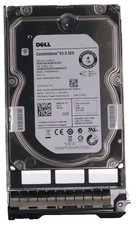
Dell 6P85J 4TB ST4000NM0063 7.2k 6Gb/s 3.5” SAS SED Hard Drive with Tray
$39.99
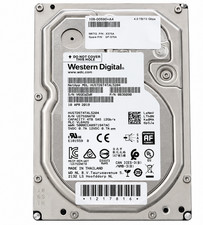
Western Digital HUS726T4TAL5204 4TB 7.2K SAS 12Gb/s 3.5" 512e HDD NetApp X375A
$64.00
Seagate ST8000DM004 8TB 3.5" 6Gb/s 256MB SATA HDD P/N: 2CX188-300 Tested
$149.99

DELL 2TB Enterprise HDD (7200RPM, 3.5", SATA III, 128MB Cache) HUS722T2TALA600
$49.95
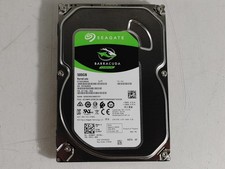
Seagate ST500DM009 BarraCuda 500 GB 3.5" SATA III Desktop Hard Drive
$14.99
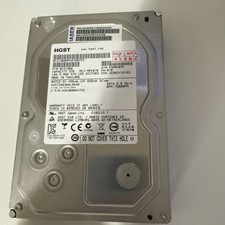
HGST Ultrastar 7K4000 3TB 7200RPM SATA III 3.5" Hard Drive HDD HUS724030ALA640
$39.99
HGST HUA723030ALA640 3TB SATA 7200 RPM 3.5 in Enterprise HDD | 0F14044 (100%)
$45.00
Dell ST6000NM0034 1HT27Z-150 NWCCG 6TB SAS 3.5 7.2K ENTERPRISE SERVER DRIVE
$68.99
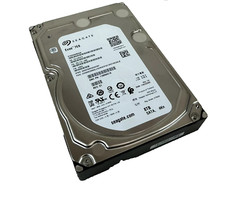
(ST8000NM0045) SEAGATE ENTERPRISE 8TB 7200RPM 4Kn SATA 6Gb/s 3.5" HARD DRIVE
$199.99
Seagate Exos X16 ST12000NM001G 12TB 256MB 7200RPM 3.5" SATA 6Gb/s Enterprise HDD
$349.95



 Reply With Quote