

I like to try to find monitors that will support 15khz signals (like for the Amiga). So I try a bunch of different resolutions with cvt but it's really a pain to do it manually.
So I resolved to find a better way to do it.
I use a small ASUS laptop, an EEE pc 900A with Intel 945GM graphics that has a 4gb ssd with a "minimal version" 700Mb knoppix installed to the ssd, as the full 4.7gb knoppix won't fit on the ssd.
This can also be worked around because the EEEpc can also boot from an SD card or a USB flash drive that is larger than 4.7gb by hitting ESC during the boot sequence.
I wrote a small script that I call mycvt that uses cvt and xrandr to set the output resolution modeline.
The asus eee pc has a VGA output called VGA1 by xrandr. If I don't specify a device to use, then it will default to using VGA1.
You can set the device by running mycvt using source and a single parameter.
"source ./mycvt HDMI-1; ./mycvt 1280 960" will set the xrandr device to HDMI-1 and then attempt to change the resolution to 1280 by 960
A single dot is also an alias for source, you can do
". ./mycvt HDMI-1; ./mycvt 1280 960"
You can also set the device by just using the environment variable d and export:
"export d=HDMI-1; ./mycvt 1920 1080 -r"
"export d=LVDS1; ./mycvt 1024 600"
The bash script for mycvt, you will need to "chmod u+x" to make it executable.
Code:#/bin/bash if [ $# -eq 1 ] then echo one parameter given, set device to $1 declare -x d=$1 printenv d #no, child cannot modify env vars of parent but you can run it as source ./mycvt and it will work #. ./mycvt VGA1 will also work as . is an alias for source else echo $* cvt $* echo d = $d if [ -z "$d" ] then d=VGA1 echo no device specified, using $d fi a=`cvt $* | tail -1 | cut -d' ' -f2-` b=`cvt $* | tail -1 | cut -d' ' -f2` echo $a echo $b echo xrandr --newmode $a echo xrandr --addmode $d $b echo xrandr --output $d --mode $b xrandr --newmode $a xrandr --addmode $d $b xrandr --output $d --mode $b fi
So if you use a resolution that makes it invisible, there's lots of ways to recover:
One way is to kill the x server with CTRL+ALT+Backspace, and it will relaunch X and use a ddc detected resolution.
If you make it so that the terminal is launched with .config/autostart desktop entry, it's really convenient.
If something goes awry, just kill the X server and you're back almost instantly.
Another is to specify a normal resolution by blind typing "./mycvt 800 600" or "./mycvt 1024 768"
Another method is to switch to a VT with CTRL+ALT+f4 to select VT4, then type
"chvt 6; sleep 4; export DISPLAY=:0; sudo -u knoppix xrandr --output VGA1 --mode 1024x768"
to set the VGA1 mode to 1024x768.
Another is to have a couple of failsafe scripts like 800 or 1368 (using chmod u+x to make them executable)
800:
./mycvt 800 600
1368:
./mycvt 1368 768
1920:
./mycvt 1920 1080 -r
I like the ability of the asus 900A to have it's own screen active, so if I can't see what I'm typing, I'll type CTRL+L to clear the terminal so that I'm typing up at the top of the screen.
So I can test a monitor if it can handle 15khz signals pretty quickly with a few scripts, I call 240 and 292:
240:
./mycvt 720 240 60
292:
./mycvt 720 292 50
and then recover easily with ./800 if the signal is unsupported.
There's basically a whole range of resolutions and refresh rates that you can try, it's really easy to experiment.
For example, some video cards don't like to output any horizontal resolution lower than a certain value, so you can try different values:
./mycvt 720 240 60
./mycvt 960 240 60
./mycvt 1280 240 60
./mycvt 1440 240 60
./mycvt 1920 240 60
Last edited by don999; 03-18-2023 at 06:10 PM.
 Posting Permissions

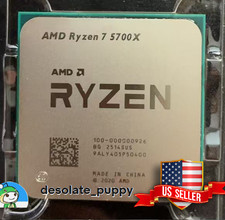
(New) AMD Ryzen 7 5700X 8 Core 16 Thread AM4 Unlocked 3.4 GHz CPU OEM Tray
$169.99
Lenovo ThinkPad T14 Gen 2a 8-Core Ryzen Pro 7 5850U 1.90GHz 512GB SSD 16GB RAM
$300.00
HP ZBook Firefly 14" G8 Mobile Workstation i5 11th Gen 16GB RAM 256 GB SSD No AC
$184.99

Intel Core i9-9900K SRG19 3.60GHz 16MB 8-Core LGA1151 B Grade CPU Processor
$175.00
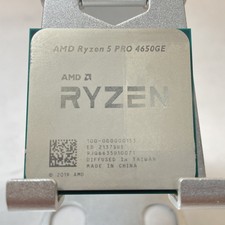
AMD Ryzen 5 PRO 4650GE 100-000000153 6-Core 3.30GHz 8MB AM4 CPU Processor
$59.99
Intel Xeon E5 - 2667V2 / SR19W 3.30GHz 25MB 8-Core CPU Socket LGA2011
$30.00
AMD Ryzen 7 9700X 8-Core 16-Thread 40MB Cache Socket AM5 9000 Series Processor
$245.99
Microsoft Surface Go 2 Laptop Core i5 1135G7 2.4GHz 8GB 128GB SSD
$179.99
Lenovo ThinkPad T14 Gen 3 8-Core AMD Ryzen 7 Pro 6850U 2.7GHz 512GB SSD 16GB RAM
$450.00
AMD Ryzen 7 7700X 8-Core, 16-Thread Unlocked Desktop Processor
$250.00


 Reply With Quote