-
Senior Member
registered user
It seems strange that you would ask for help on Samba and receive instruction on localepurge! I couldn't get the start Samba script to work either. I found the easiest way to access a networked Windows box was with LinNeighborhood which is on Knoppix under 'Internet'. Here is a reply I received to pretty much the same query on the Linux Format forum.
>>>
Confirm that your network settings are correct and working. Open a terminal or DOS box (depending on the machine) and type ping ipaddress.ofthe.other.machine. If one PC can't reach the other, that's your first problem.
Make sure file sharing is installed under Windows. Also make sure that the "Network Authentication" tab below the protocols is set to "Windows Logon" and not "Client for Microsoft Networks" to reduce the level of authentication to something we can work with.
Check your Windows workgroup name and computer name. If necessary, reset these in the Network Connection Wizard (Windows, especially ME is a bit notorious for losing these settings without warning).
Share some folders under Windows. I don't know if ME has the level of authentication that 2K and XP have, where you must add users intending to access shares from another box as users to the sharing box in order for them to be seen. If so, do that.
In Linux, open up /etc/samba/smb.conf as root (or su to root and open it from a terminal, if you know how to do that).
Change the WORKGROUP setting to the same name as under Windows.
Check the other settings in the file to see if anything leaps out at you as needing to be changed, but otherwise add a share to the end of the file by using one of the examples (uncomment it, or copy it and uncomment it, changing the share name and path to reflect your system-- and don't forget, folders can only be shared from your own ${HOME} directory). The general syntax for a Samba share is:
[SHARE_NAME_(no spaces allowed)]
path = /home/username/foldername
comment = what_will_appear_in_the_tooltip/comment
public = yes
guest ok = yes
writable = no
Save any changes, close smb.conf and open /etc/hostname (also as root).
Type your hostname (the name of your Linux box), if it does not appear.
Save and close /etc/hostname, and open /etc/hosts (still as root). Next to "127.0.0.1 localhost", add your hostname, so that it reads "127.0.0.1 localhost your_real_hostname". This helps sometimes in making sure that everybody knows that localhost and your_hostname are the same box.
Save and close the text editor, and open your Users and Groups management tool (if you use KDE, that would be KUser, I believe). Add your WinME user and other Linux user as users, using the same usernames and passwords as they have under the other OSes. If you have the option to not create a Home folder for them, you can take it, unless they'll need one for some reason. Save these changes and exit the tool.
Open a terminal, su to root (or log out and log in as root, but really, using the su command is better) and type smbpasswd -a -e username_of_the_ME_user password_of_the_ME_user and hit enter. This will add that user to the smbusers list, which means that Samba won't refuse their connection when they try to access the files shared on your box. Repeat for any other users on the ME or Linux boxes.
Reboot. You could just (re)start the Samba server using the command '/etc/rc.d/init.d/smb stop' and then '/etc/rc.d/init.d/smb start', of course, but I don't know if having a share set will cause the server service to automatically start at boot, and rebooting now is the easiest way to find out. Log in as a regular user. At this point, the ME box should be able to see and access your shares. If not, it means that the Samba server isn't started, so start it with the command above. You may have to wait for the network to refresh to see the shares, which can take up to 15 minutes.
Now, open LinNeighborhood. Go to the Options and set everything how you want it (default mount points, default username/pw, etc). Also, you will want to set "Memorize Shares/Remount on next startup" to active. I usually like to set "ask username/pw once" as well, otherwise it's a PITA. Don't forget to save the new options.
Scan the network and mount the shares you want.
Close LinNeighborhood and open either your Startup folder if using KDE (I believe it's in /home/username/.kde (the dot means it's a hidden folder, so unhide hidden folders if you can't see it)/startup, or the GNOME Control Panel=>Advanced=>Session Manager if using GNOME (sorry I don't know how to create startup shortcuts for other WMs).
In any case, you want to make the following shortcut: LinNeighborhood -m (may need to enter full path to LinNeighborhood, some distros don't recognize it only by name) which tells it to mount the memorized shares without starting the GUI and then exit.
I still haven't managed to connect Linux box to Linux box (Both my systems are dual boot).
Similar Threads
-
By geordiebiker in forum Hdd Install / Debian / Apt
Replies: 1
Last Post: 12-25-2004, 05:35 AM
-
By MrC in forum Networking
Replies: 0
Last Post: 06-13-2004, 10:59 PM
-
By non carborundum in forum Networking
Replies: 1
Last Post: 06-20-2003, 02:59 PM
-
By Juny in forum General Support
Replies: 7
Last Post: 03-14-2003, 03:25 AM
-
By linuser in forum General Support
Replies: 0
Last Post: 02-28-2003, 01:54 AM
 Posting Permissions
- You may not post new threads
- You may not post replies
- You may not post attachments
- You may not edit your posts
-
Forum Rules

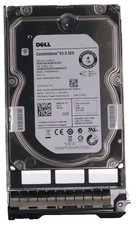
Dell 6P85J 4TB ST4000NM0063 7.2k 6Gb/s 3.5” SAS SED Hard Drive with Tray
$39.99
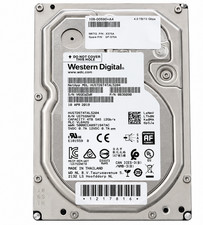
Western Digital HUS726T4TAL5204 4TB 7.2K SAS 12Gb/s 3.5" 512e HDD NetApp X375A
$64.00
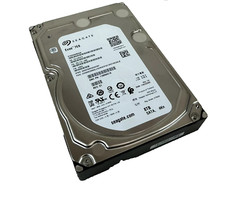
(ST8000NM0045) SEAGATE ENTERPRISE 8TB 7200RPM 4Kn SATA 6Gb/s 3.5" HARD DRIVE
$199.99

DELL 2TB Enterprise HDD (7200RPM, 3.5", SATA III, 128MB Cache) HUS722T2TALA600
$49.95
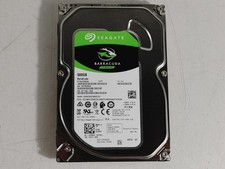
Seagate ST500DM009 BarraCuda 500 GB 3.5" SATA III Desktop Hard Drive
$14.99
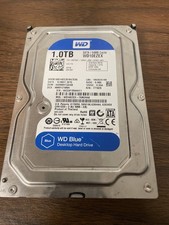
Western Digital WD Blue 1TB SATA 3.5in 7200RPM 64MB Internal HDD WD10EZEX
$14.99
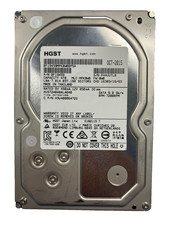
HGST HUS724040ALA640 HDD 4TB SATA 6Gb/s 7.5K 3.5" 0F19459 512 b/s
$78.00
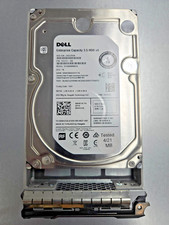
Dell ST6000NM0034 1HT27Z-150 NWCCG 6TB SAS 3.5 7.2K ENTERPRISE SERVER DRIVE
$68.99
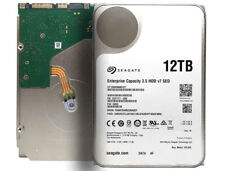
Seagate ST12000NM0127 12TB 256MB 7200RPM 3.5" SATA 6.0Gb/s Enterprise Hard Drive
$318.99
Western Digital 2TB WD20EFRX-68EUZN0 3.5" SATA Red NAS Hard Disk Drive
$69.99



 Reply With Quote