-
Senior Member
registered user

Originally Posted by
rrfish72
When I dmesg I do not get any info about my drives after I did an upgrade. It prints repeatedly 'JEDEC: found no ICH2 ROM device at location zero. ' Also goes to 1,2, and back to 0. I saw all the drive info before the upgrade, now I get nothing about the drive. I do get other details about the computer but not like it was before. This message also appears during the boot process into knoppix. See post:
http://www.knoppix.net/forum/viewtopic.php?t=12923
No problem on dmesg output, I don't have a clue what JEDEC is, or what it does, never heard of it... I find nothing about "jedec" from either man or info, but, when I do a locate, it appears it is a form of driver, I find it in my Kernel Source tree, under /drivers/mtd/chips as jedec_probe... If I was going to take a guess on what it is, I might guess it was for JAZZ disc support... Not having a JAZZ drive on, or configured on, my system - it isn't loaded...
For an alternate way of finding your sr#'s - try the following: KMenu -> System -> Info Center -=- and click the SCSI on the left pane, see what shows up on the right side pane...
Originally Posted by
rrfish72
When I change both icons to cdaudio device they read from the dvd drive and can read data cds. 'ERROR: No plugin found to handle this resource' is the message kaffeine gives me when I try to play a dvd. This is because to the lib thing right?
I think the error is from the lib... /cdaudio must be symlinked to your /dvd device then... Your /dvd symlink should be pointing to the same sr# as your /cdaudio symlink ( you should check to make sure this is correct. )
Originally Posted by
rrfish72
When both icons point to the correct devices they do not work that way. I can not even read a data cd in either. I cant find the audio cable without the dmesg working right, is there any other way to do it. Could I see it by opening my computer?
Yes, best way to be sure where your audio cable is going from and to, is to "physically" look at it - not sure if there is a way to do this without doing this... You might want to shutdown your computer, power it off, open it up, and find the audio cable - if your sound card is on your motherboard, you will find a thin ( 4 wire ) cable from one of your ROM drives, and you should follow it to either your motherboard, or to a seperately mounted PCI card - which will have your sound card connections on the "Back Plane"...
Once you get your sr#'s from within Info Center, check the following, replacing the sr#'s for your devices for what I have shown...
/dvd -> sr0 -> scd0
/cdaudio -> sr0 -> scd0
/cdrom -> sr0 -> scd0
/cdrom1 -> sr1 -> scd1
Key:
"->" = symlink - check to ensure that the link exists, with a ls -la /dev/xxxx
You should have a symlink that points like this: from -> to, and the "from" should be in the form of: /dev/device - like: /dev/dvd
/dev/cdrom should point to sr0, which in turn, /dev/sr0 should point to scd0
/dev/cdrom1 should point to sr1, which in turn, /dev/sr1 should point to scd1
/dev/dvd should point to the correct /dev/sr# that Info Center says your dvd device is on...
/dev/cdaudio should point to the correct /dev/sr# that you find the "physical" audio cable going from to your sound card...
/cdrom and /cdrom1 always point to there respective sr#'s - this is a "standard"...
Once you determine your dvd and cdaudio devices, make those changes in your symlinks, also, enusre that your cdrom and cdrom1 devices are symlinked to there respective sr#'s... Then....
Post back the following output:
# ls -la /dev/sr*
# ls -la /dev/dvd
# ls -la /dev/cdaudio
# ls -la /dev/cdrom*
Check your fstab file entries for the above devices, and ensure that the "mount point" folders exist... as an example:
My DVD fstab file entry line shows my "mount point" to be /dvd
So do the following to make sure the folder exists for it:
# ls -la /dvd
the above command will either list out a directory listing, or show an error, like this:
ls: /xxx: No such file or directory
where "xxx" is what you had in the ls -la command...
If the folder doesn't exist, then make a note of it, and post back, with the other output above, that "this folder did not exist" - and we will be sure to create one for it, on the next steps.
After this, we will know the fstab file is done, we will be done with all the symlinks, everything should be pointing to there correct devices, and should work, unless you find some directories don't exist, in that case, mounting a device that doesn't have a directory for its mount point, will probably error. And if the lib thing isn't resolved, then trying to use Xine or Kaffeine to play a dvd will still have an error, as well.
If you have all the symlinks correct, and mount point directories are existing, and we still get device errors, even when trying to mount, or view, a ROM device, we may need to start "digging" a little deeper, possibly into permissions, and such. ( ? )
This should keep you a little busy for a while, and should give you a few things to check, resolve, change, and test - ( you might want to make a note of what device has the audio cable on it, for future referance, it doesn't hurt to know this info, later on, as well )
Ms. Cuddles
Similar Threads
-
By asearle in forum Hdd Install / Debian / Apt
Replies: 1
Last Post: 04-16-2005, 10:02 PM
-
By probono in forum Ideas
Replies: 0
Last Post: 09-17-2004, 04:17 AM
-
Replies: 1
Last Post: 09-15-2004, 01:36 AM
-
By CapnKirk in forum Customising & Remastering
Replies: 2
Last Post: 02-13-2004, 04:54 PM
-
By speeves in forum Customising & Remastering
Replies: 0
Last Post: 02-12-2004, 04:03 PM
 Posting Permissions
- You may not post new threads
- You may not post replies
- You may not post attachments
- You may not edit your posts
-
Forum Rules


4x Various Brands 8.5" Mainframe 9-Track Reel Computer Data Tape 6250 CPI .5"
$24.99
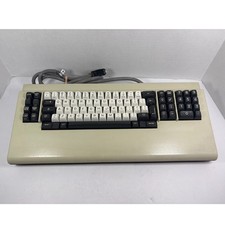
Vintage Telex 952003-112 Mechanical Terminal Keyboard IBM 3270 Mainframe DB25
$699.99
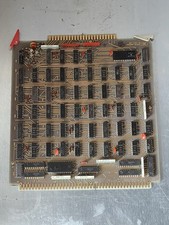
HP 13210-60001 Disc Drive Interface PCB HP 7900A 7901A Vintage
$157.93
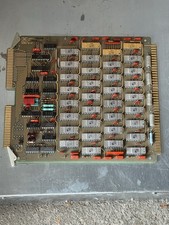
HP 5060-8359 8K Semiconductor Memory Module 5080-9747 Vintage HP Computer
$157.30
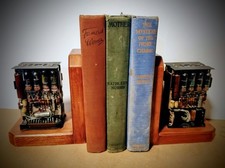
One Of A Kind Homemade Vintage Mainframe Computer, Logic Module Wood Bookends
$149.00
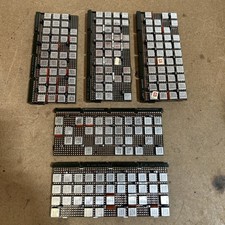
Vintage IBM Syst 370 MST Boards Lot Of 5 Heavily Populated IBM 22 Alu Can Chips
$79.00
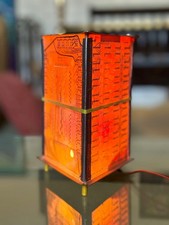
Vintage UNIVAC Mainframe Circuit Board Lamp - Cyberpunk Tech Geek Industrial Art
$225.00
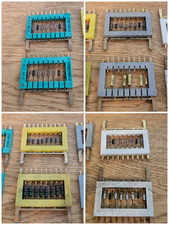
8x Gold Rare Vintage Mainframe Burroughs Transistor Cordwood Modules B2500/B5000
$149.95
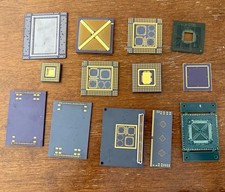
Vintage Intel Mainframe Server MCM CPU Substrate Lot Prototyping PGA Validation
$500.00
Oracle for Macintosh Developer’s Kit v1.0a (1988–1989) – Complete • UNUSED
$1600.00



 Reply With Quote