-
HOWTO: Upgrade to Debian Unstable
This is a tutorial on how to upgrade your just-installed KNOPPIX to debian unstable. I personally belive that using the sid repositories is better than using unofficial repositories so you can get the latest software.
The first step is to install knoppix. Boot from the CD, change things to your liking, and run the hdinstall script. Restart your computer.
Now that you've restarted, you should see the KDM login manager come on screen. Select the "console login" option. You will no be in a console with a login prompt. It should say something like this: "yourhostname login:" Log in as root. You will now have a root (#) prompt.
Type "vim /etc/apt/apt.conf" to edit your apt configuration file. Change the line APT: efault-Release "testing"; to APT:efault-Release "unstable";.
Now edit your /etc/apt/sources.list file so it looks something like this:
Good, now that that is set up, quit vim and get ready to do some apt-ing. Enter the following commands:
Code:
# apt-get update
# apt-get dist-upgrade
The dist-upgrade command will probably prompt your to remove many large packages. When I did it, the dist-upgrade command told me it had to remove all of KDE, for instance. Don't worry, you can install it later.
When you are upgrading, you will probably encounter an error in which one package cannot overwrite another packages files. your apt-get process will end with an error like "error processing package: /var/cache/apt/archives/blahblah-2.3.deb". You can fix that like this.
Code:
# dpkg --force overwrite -i /var/cache/apt/archives/blahblah-2.3.deb
# apt-get install -f
# apt-get dist-upgrade
Eventually, the long process will end. You will probably want to reinstall KDE, GNOME, CUPS, etc. (if they weren't already removed) with their GCC-3.3 (or whatever unstable is currently at; it's GCC-3.3 at the time of this writing):
Code:
#apt-get remove kdelibs
#apt-get install kde
#apt-get install gnome
#apt-get install mozilla mozilla-xft
The KDE and GNOME metapackages for unstable are (at the time of this writing), version 3.1.1 and 2.2.1, respectively. When you have reinstalled all the necessary packages, restart your computer enjoy your new Debian-SID computer. It should now function identically to any other regularly installed SID system.
Similar Threads
-
By RemasteringNoob in forum Customising & Remastering
Replies: 11
Last Post: 07-27-2004, 02:26 AM
-
By awreneau in forum Laptops
Replies: 2
Last Post: 04-30-2004, 06:30 PM
-
By datakid in forum General Support
Replies: 0
Last Post: 11-07-2003, 07:46 AM
-
By hyao in forum General Support
Replies: 1
Last Post: 08-01-2003, 03:40 PM
-
Replies: 1
Last Post: 01-06-2003, 12:51 PM
 Posting Permissions
- You may not post new threads
- You may not post replies
- You may not post attachments
- You may not edit your posts
-
Forum Rules

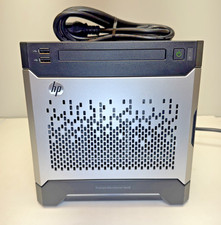
HP ProLiant MicroServer Gen8 G1610T @2.3 GHz, 16GB, 712317-001 NO HDD/OS
$199.00
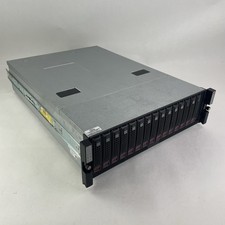
Supermicro CSE-937 3U Storage Chassis No CPU No HDD No Ram Tested & Reset
$129.99
Supermicro 1U Network Server Appliance 16GB RAM 800GB SSD 6 LAN Ports Powers On
$450.00
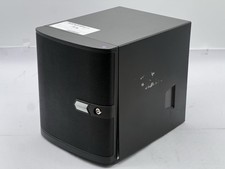
Nasuni NF-50 Supermicro Server, Atom CPU C2558, @ 2.40GHz, 8GB RAM-No HDD/OS/AC
$250.00
HP PROLIANT MICROSERVER GEN8 E3-1220LV2 @ 2.30GHz, 8GB RAM, NO HDD/OS
$164.97
New Barebones Supermicro 5019D Server, 4C/8T Xeon D-2123T, 1U Rackmountable, 10G
$449.99

Supermicro CSE-815-5 4B LFF Xeon E3-1245v6 16GB DDR4 1x 9361-8i 4x 1TB SATA HDD
$483.99

Supermicro CSE-815-5 4B LFF Xeon E3-1220v5 16GB DDR4 1x 9361-8i 4x 1TB SATA HDD
$477.00
Supermicro 505-2 Server
$280.00
Supermicro CSE-937 3U Storage Chassis No CPU No HDD No Ram Tested & Reset
$129.99



 Reply With Quote