-
Senior Member
registered user
--Best performance I've found ssh with compression and port forwarding:
--VNC listens on port 5900 + whatever screen the server was started with; if you ' vncserver :3 ' then you would ' vncviewer SERVER:5903 '
' vncpasswd ' == Reset the VNC password to whatever you want to use; only need to run once on the server side
--For this example, my vncserver is p233; on (server side) issue:
' vncserver :5 -geometry 1024x768 ' == You can use arbitrary geometry like 900x700 if you want
--Connect remotely from Linux using ' vncviewer p233:5905 ' or http://p233:5805 if you have the Java viewer installed
--To kill vnc on the server side:
' vncserver -kill :5 ' to bring it down and also terminate any client connections
# IF you ' ssh -2 -C -c blowfish -L 5995 233:5905 p233 ' from a client box, this will compress the VNC data
# THEN ' vncviewer localhost:5995 ' on the client box to connect to the compressed SSH port
# 5995 (localhost) ----=> 5905 (server)
--The above directs SSH to allocate port 5995 on the *client* and listen to port 5905 on p233. You can still connect directly to p233:5905, but if you connect to localhost:5995 on the client you
will get the compressed connection.
--When ' vncserver ' is started, it checks ~/.vncrc, which sets some default values like geometry and color depth (NOT a typical shell script - see man vnc for details. Also note that you can override these default settings by passing args to vncserver on startup) and then points to ~/.vnc/Xsession. Xsession sets a few more regular shell vars and you can put stuff in there to run the rxvt terminal and use ' icewm ' or something as the window manager. If I didn't do this, then KDE would be running instead. 
--Contents of .vncrc
Code:
$vncStartup = "~/.vnc/XSession";
--Contents of .vnc/XSession
Code:
# initialize variables for use by all session scripts

OPTIONFILE=/etc/X11/Xsession.options

SYSMODMAP=/etc/X11/Xmodmap
USRMODMAP=$HOME/.Xmodmap
SYSRESOURCES=/etc/X11/Xresources
USRRESOURCES=$HOME/.Xresources

SYSSESSIONDIR=/etc/X11/Xsession.d
STARTUP=$HOME/.xsession
ALTSTARTUP=$HOME/.Xsession
ERRFILE=$HOME/.xsession-errors

#xinit /usr/bin/sawfish
##source ~/.vnc/xstartup

xrdb $HOME/.Xresources
xsetroot -solid grey

#xterm -geometry 80x24+10+10 -ls -title "$VNCDESKTOP Desktop" &
#twm &
#icewm &
#/opt/gnome/bin/sawfish &
##/usr/bin/sawfish &
xset s off

# This is from the FAQ - start vncserver with -name

rxvt -geometry 80x34+10+10 -ls -title "$VNCDESKTOP Desktop" &

/usr/bin/sawfish &
# Note: See ~/.xsession for which window manager to load!

exit 0
--Sometimes you will get faster response in the VNC window by limiting the viewer to 256 colors (8bit.) You can do this from Windows as well in the "Options" clicky before initiating the VNC
connection.
--If you are connecting from Windows, also play with the VNC options on the viewer - sometimes you get faster response with Hextile or one of the other options. Experiment.

Originally Posted by
rickenbacherus
Indeed you can. Your results will be similar to an internet 'speed test' which is not only dependant on the bandwidth available to the respective machines but is also largely dependant on the route the data must actualy take to get through the network to the other machine. There are settings for compression and options such as not sending the desktop backgrounnd that enable a much faster connection. I have found that VNC is one of the best teaching/support tools available andyes I do use it globally. Personally I like
tightvnc. Curently the dev's are working support for file transfers but it is not quite yet implemented.
Real VNC is also an option and they have a good FAQ..
Similar Threads
-
By mattrock1988 in forum Ideas
Replies: 1
Last Post: 12-06-2011, 05:43 AM
-
By tfoso in forum Networking
Replies: 1
Last Post: 02-23-2005, 10:04 PM
-
By Databug in forum General Support
Replies: 3
Last Post: 09-29-2003, 10:11 PM
-
By vesselinpeev in forum Networking
Replies: 6
Last Post: 09-29-2003, 05:32 AM
-
By xTrinity in forum General Support
Replies: 2
Last Post: 01-28-2003, 01:46 AM
 Posting Permissions
- You may not post new threads
- You may not post replies
- You may not post attachments
- You may not edit your posts
-
Forum Rules


Vintage Mainframe Computer Disk Drive Pack Dyson SMD 5 Level Disks
$79.00
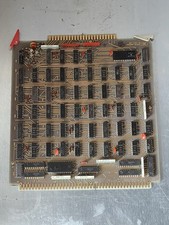
HP 13210-60001 Disc Drive Interface PCB HP 7900A 7901A Vintage
$225.61
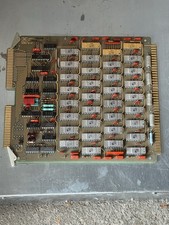
HP 5060-8359 8K Semiconductor Memory Module 5080-9747 Vintage HP Computer
$224.72
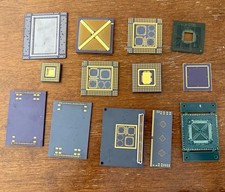
Vintage Intel Mainframe Server MCM CPU Substrate Lot Prototyping PGA Validation
$500.00
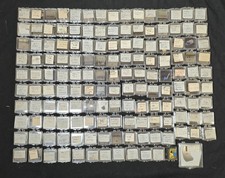
Vtg IBM Mainframe Prototype Chip Module Lot 146 pc 1988-1993 ES/9000 Lab Arcive
$649.00
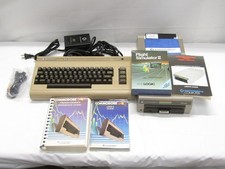
Commodore 64 PC with Model 1541 Diskette Drive and Flight Simulator II *READ*
$199.99

Mainframe Computer Data Punch Card Lot of 50 Orange 80 Column IBM comp Vtg NOS
$15.00
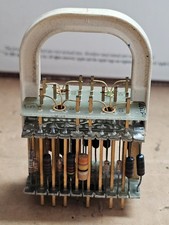
Rare Vintage Mainframe Burroughs Discrete-Transistor Cordwood Module B2500/B5000
$99.95
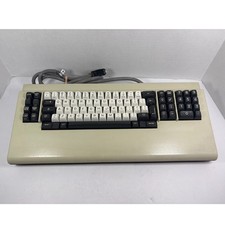
Vintage Telex 952003-112 Mechanical Terminal Keyboard IBM 3270 Mainframe DB25
$799.00

Vintage UNIVAC 3620670-01 Mainframe Logic Board 15MHz Sperry Computer PCB
$98.95



 Reply With Quote